

Apple Pay
Available via: Dashboard (domains) · Hosted checkout and SDK (payments)
Apple Pay lets buyers pay with the cards in their Apple Wallet, confirmed with Face ID or Touch ID. Inflow offers it in two places, with different requirements:
| Where | What you need to do |
|---|---|
| Hosted checkout (payment links, subscription links, checkout sessions) | Nothing. The checkout runs on Inflow's domain, which is already registered with Apple. Apple Pay is turned on for your account by Inflow; contact [email protected] if your buyers don't see it. |
| SDK (the card form you embed on your own site) | Register each domain that shows the form, wait for it to go live, and turn on Apple Pay in Settings → Checkout. |
The rest of this page covers the SDK setup.
How to Access
- Open your Inflow Dashboard.
- Go to Settings → Integrations, and click Set up on the Apple Pay card (See details once you have domains).
You can also click Set up next to Apple Pay in Settings → Checkout. Adding and removing domains requires write access to merchant settings. See Roles and Permissions.
Register a Domain
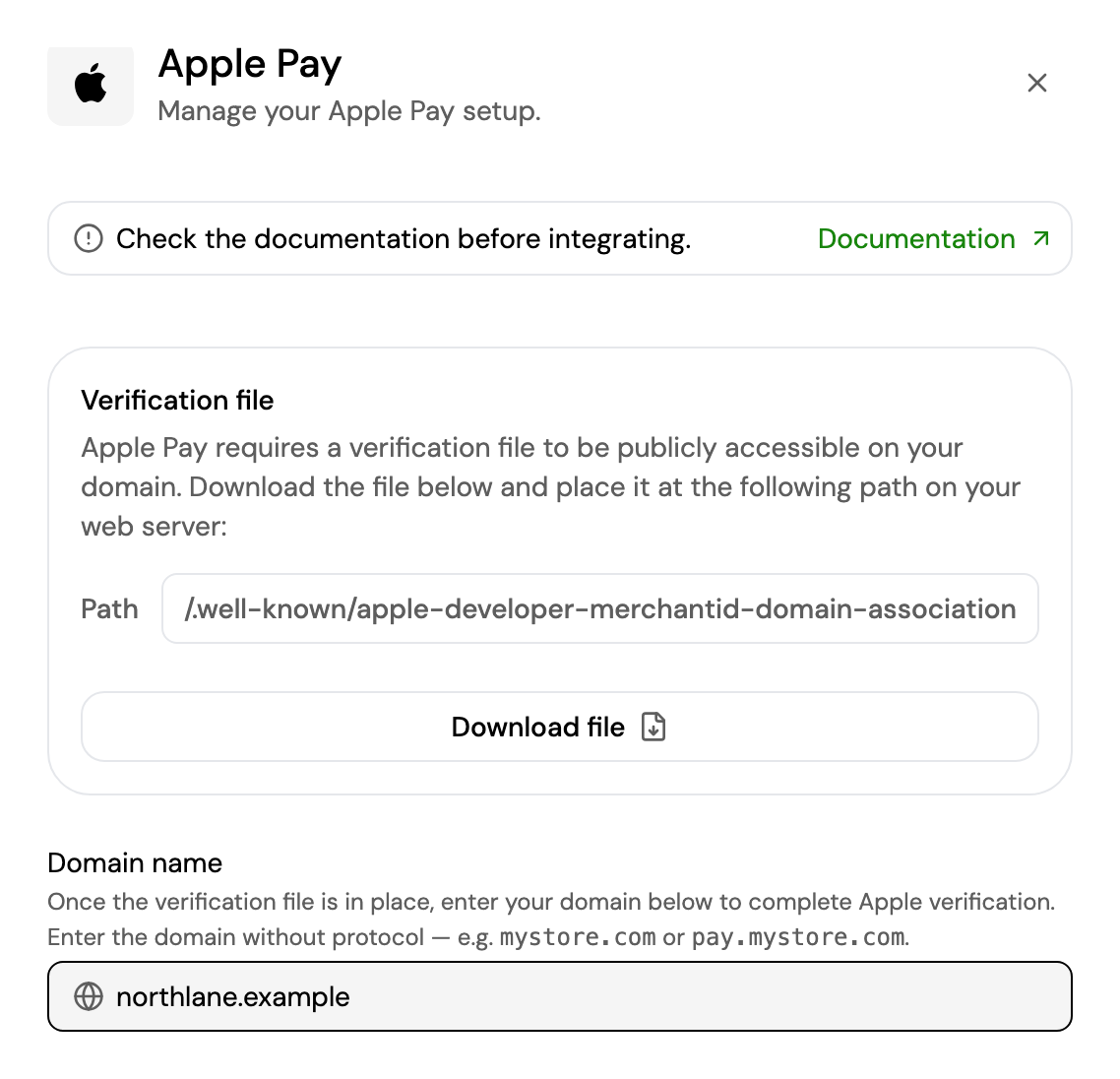
-
Click Download file. It downloads Apple's domain verification file.
-
Host the file on your domain at exactly this path, without changing its content or name:
https://<your-domain>/.well-known/apple-developer-merchantid-domain-associationIt must be publicly reachable over HTTPS, with no login, redirect or IP restriction in front of it.
-
Enter the domain without
https://or a path, for examplenorthlane.exampleorshop.northlane.example, and click Add domain. -
Apple checks the file. If it's found, the domain goes to Pending review by Inflow. If it isn't, the domain is still added, as Verification failed: fix the file and retry, or remove the domain. Either way, it uses one domain of your limit until you remove it.
-
Inflow reviews the domain. Once it's approved and Apple Pay is active on your account, the domain shows Live.
Apple's own guide covers the verification file in more detail: Preparing merchant domains for verification.
Register the exact hostname of the page that shows the SDK form. northlane.example and www.northlane.example are two separate domains: each one needs the file and uses one domain of your limit. Wildcards (*.northlane.example) and IP addresses aren't accepted.
Your Domains
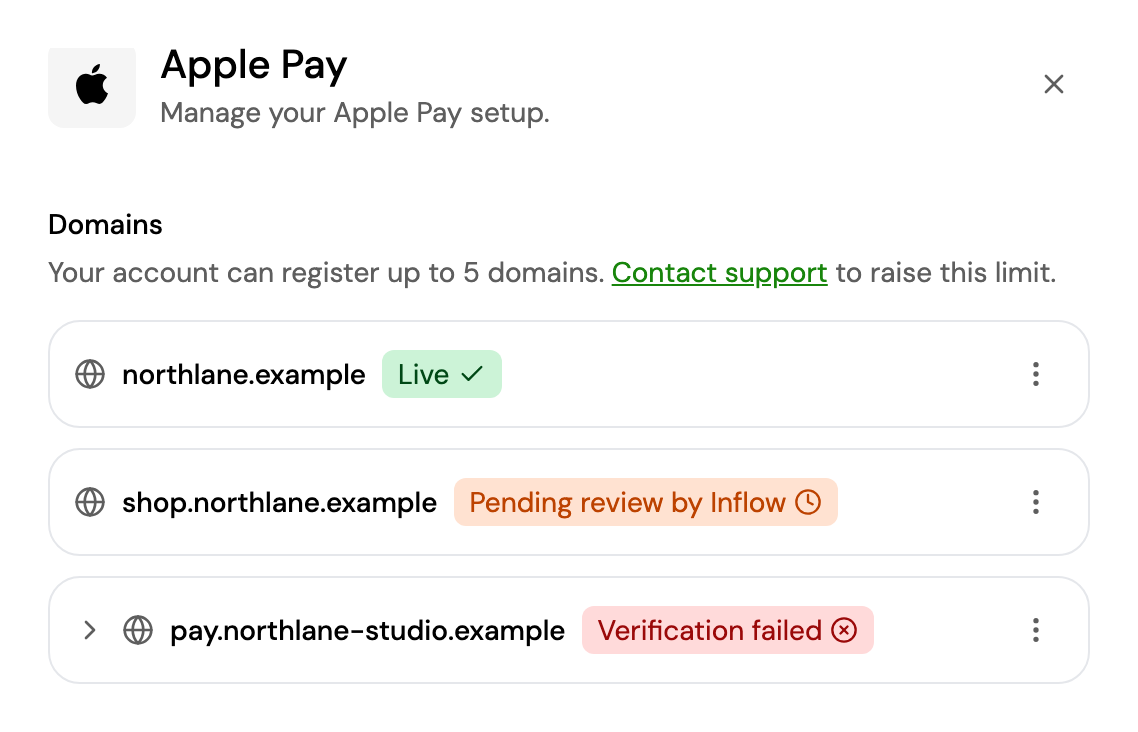
| Status | Meaning |
|---|---|
| Verification pending | Apple is checking the verification file. |
| Verification failed | The file couldn't be found or validated on the domain. See Troubleshooting. |
| Pending review by Inflow | Apple verified the domain; Inflow is reviewing it. |
| Pending activation by Inflow | The domain is approved; Inflow is activating Apple Pay on your account. |
| Live | Apple Pay can be offered on this domain. |
| Rejected by Inflow | The domain was declined. Expand it to see the reason. |
- Retry verification: click ⋮ → Retry verification on a failed domain once the file is in place.
- Remove: click ⋮ → Remove. Removing a live domain stops Apple Pay on it immediately, and frees one domain of your limit.
- Domain limit: your account can register a limited number of domains (one by default), shown in the drawer. Failed and rejected domains count until you remove them. Contact [email protected] to raise the limit.
- Not in checkout: the card shows it when a domain is live but Apple Pay is off in Settings → Checkout. Turn it on there to show it to buyers.
- Via marketplace: if your account is a seller on a Connect marketplace, Apple Pay uses the marketplace's domains and setup, so there is nothing to register.
When Buyers See Apple Pay in the SDK
The Apple Pay button shows next to the card form only when all of these are true:
- At least one domain is Live.
- Apple Pay is on in Settings → Checkout. You can turn it on before a domain is live; it starts showing as soon as one is.
- The page that embeds the form is on a live domain, with an exact hostname match.
- The buyer uses Safari (or another Apple browser) on a device with Apple Pay set up.
On hosted checkout, Apple Pay can also show in other browsers, where the buyer confirms the payment on their iPhone.
See Vanilla JS Integration and React Integration to embed the SDK, and Troubleshooting if the button doesn't show.
Troubleshooting
Verification failed
The domain shows Verification failed when Apple can't find or validate the verification file. Open this URL in a private browser window, replacing the domain with yours:
https://northlane.example/.well-known/apple-developer-merchantid-domain-association| What you see | Fix |
|---|---|
| A 404 or your site's "page not found" | The file isn't at the right path. Check the .well-known folder name, including the leading dot, and that the file has no extension such as .txt. |
| A redirect to another URL, or a login page | Serve the file directly on that hostname, with no redirect, password protection or firewall rule in front of it. |
| A security warning | The domain needs a valid HTTPS certificate. |
| Content that differs from the downloaded file | Download the file again from the Apple Pay drawer and replace it without editing it. |
Hosting providers often hide folders that start with a dot, or redirect example.com to www.example.com (or the reverse). Register the hostname that actually serves the page, and add the file there.
Once the URL shows the file, click ⋮ → Retry verification.
If adding or retrying shows Failed to verify the domain, Inflow couldn't reach Apple's service: wait a few minutes and retry. If it shows Too many attempts. Please try again in an hour., you've reached the hourly limit of attempts.
The button doesn't show in the SDK
Check each point in order:
- The domain is Live. In Settings → Integrations → Apple Pay, the domain must show Live, not Pending review by Inflow or Pending activation by Inflow.
- Apple Pay is on. If the Apple Pay card shows Not in checkout, turn on Apple Pay in Settings → Checkout.
- The hostname matches exactly. The page that embeds the form must be on a registered domain.
www.northlane.exampledoesn't matchnorthlane.example, and a staging or preview domain needs its own entry. - The page sends its address to the form. The SDK uses the browser's referrer to check the domain. If your site sends a
Referrer-Policy: no-referrerheader, Apple Pay can't show; use a policy such asstrict-origin-when-cross-origin. - The browser supports it. Test in Safari on a Mac or iPhone with a card in Apple Wallet. Apple Pay doesn't show in the SDK in other browsers.
The button doesn't show on hosted checkout
Hosted checkout doesn't need a registered domain. If buyers don't see Apple Pay there, it isn't turned on for your account yet: contact [email protected].
A domain was rejected
Expand the domain to see why Inflow declined it. Remove it, fix the cause, and add it again, or contact [email protected].
Updated about 3 hours ago