
Payouts
Available via: Dashboard only
The Payouts tab lists your withdrawals to your bank accounts and wallets. If your payouts need approvals, this is also where you approve them.
How to Access
- Open your Inflow Dashboard.
- Go to Transactions → Payouts.
The tab requires access to payouts. Approving a payout requires write access to payouts. See Roles and Permissions.
Your Payouts
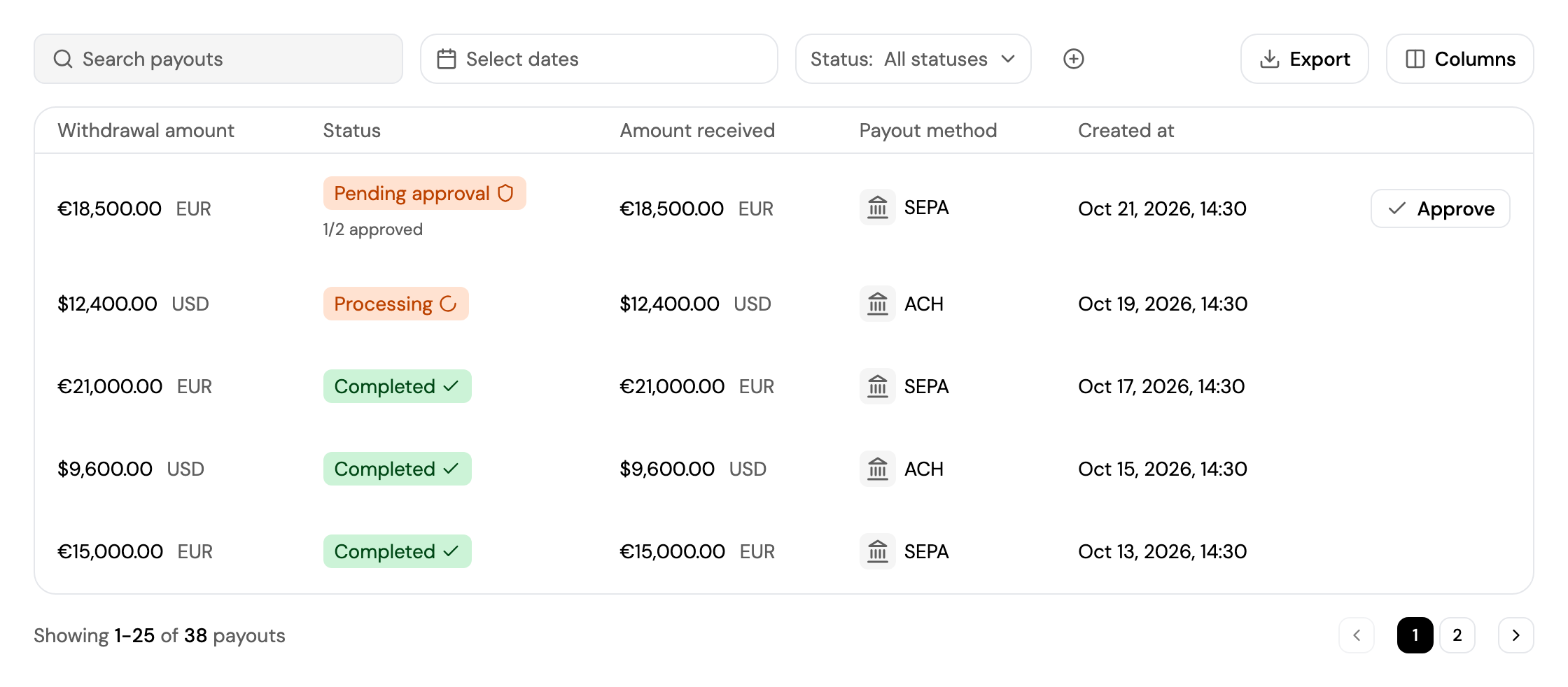
Each payout shows the amount withdrawn, its status, the amount received, the payout method and the date. See How Payouts Work, and Finding a Transaction for search, filters and export.
| Status | Meaning |
|---|---|
| Initiated | The payout was created. |
| Pending approval | The payout is waiting for approvals. |
| Processing / Submitted / Sent | The payout is on its way. |
| Completed | The money has arrived. |
| Failed / Cancelled | The payout didn't go through. |
| Returned / Refunded | The receiving bank sent the money back to your balance. |
Click a payout to see its breakdown, the account it was sent to and its timeline. On a completed payout, View invoice opens its invoice, once Inflow has verified your business (see Business Verification). If you've connected Quaderno, the invoice is in your Quaderno account instead.
Approve a Payout
If you've turned on Payout Approvals, each withdrawal waits as Pending approval until enough approvers have approved it. The status shows how many approvals it has, for example 1/2 approved.
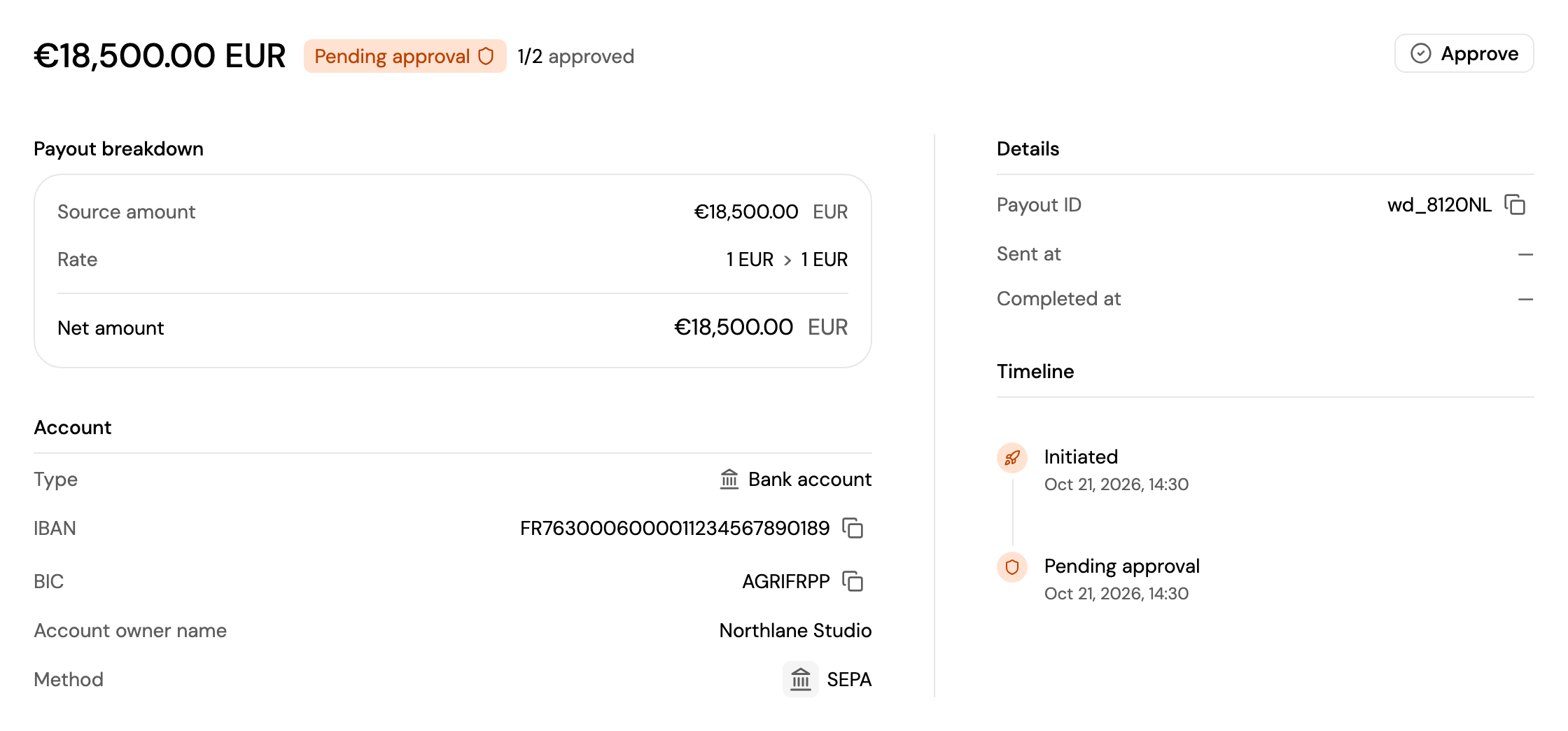
If you're an approver, click Approve in the payouts list or on the payout's page, and enter the 6-digit code from your authenticator app. You need two-factor authentication turned on to approve. When the last required approval is recorded, the payout is sent automatically.
When a payout is waiting for you, an Approval required message also appears when you open the dashboard. Click Review approvals to open the payout, or Later to be reminded in your next session.
Updated about 3 hours ago