

Subscriptions
Available via: Dashboard and API
Subscriptions lists every subscription your customers have started from your subscription templates. Open one to see its payments and manage it.
How to Access
- Open your Inflow Dashboard.
- Click Subscriptions in the sidebar.
The page requires access to subscriptions. Every action on a subscription requires write access. See Roles and Permissions.
Your Subscriptions
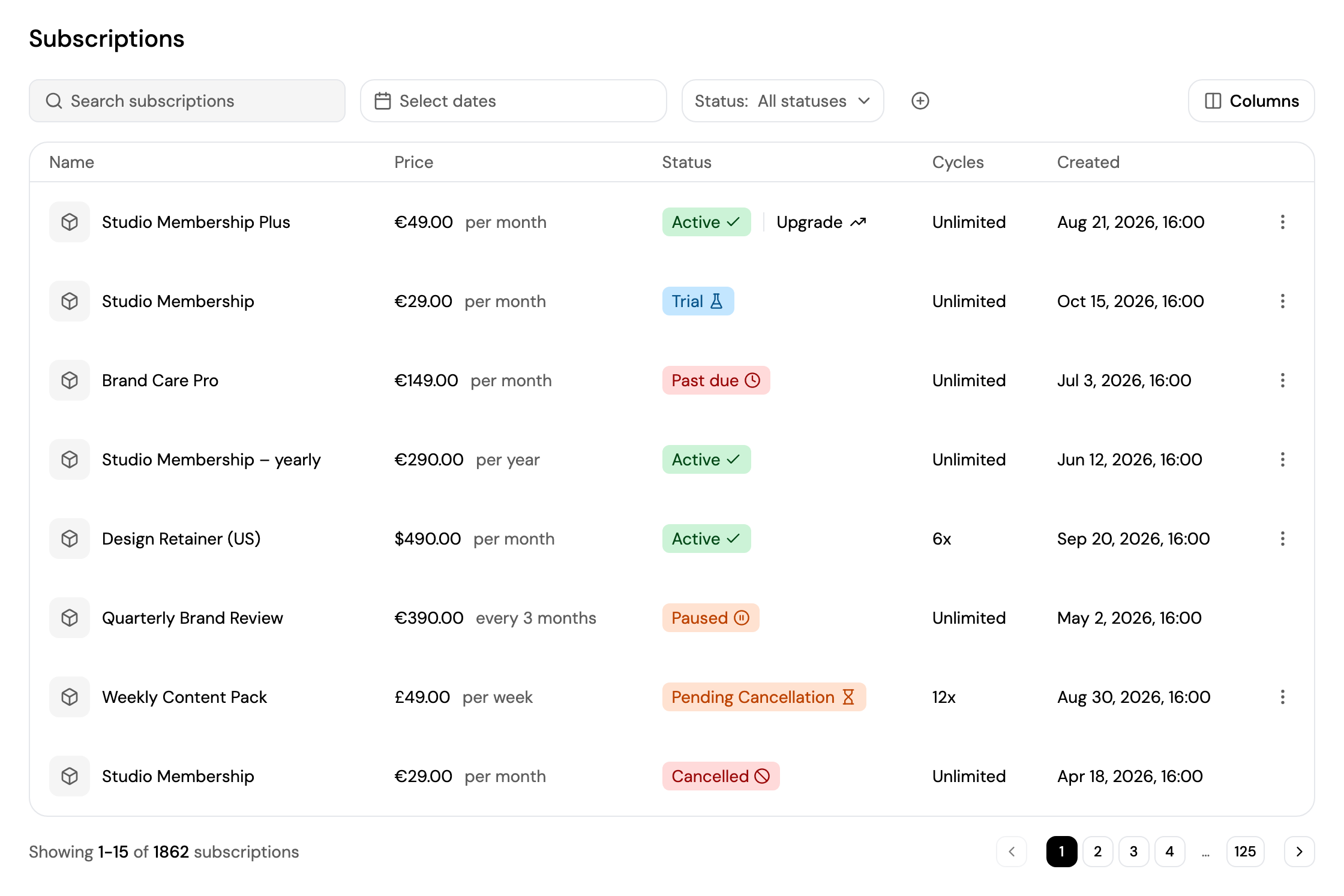
- Search for a subscription, pick a date range with Select dates, and filter by Status. Click + to filter by Currency, Interval, Customer ID or Template ID.
- Click Columns to choose which columns are shown, including Customer and Discord username.
- Each subscription shows its name, price and billing period, status, number of cycles (Unlimited or for example 12x) and creation date. A recent plan change shows next to the status, for example Upgrade.
- Click a subscription to open it, or click ⋮ → Cancel subscription.
| Status | Meaning |
|---|---|
| Initiation | The subscription was created but the customer hasn't completed checkout yet. |
| Trial | The customer is in a free trial and hasn't been charged yet. |
| Active | The subscription is running and renews normally. |
| Past due | The last renewal failed and is being retried. |
| Unpaid | Several payment attempts have failed. |
| Paused | Payment collection is paused. |
| Pending Cancellation | The subscription ends at the end of the current billing period. |
| Inactive | The subscription is no longer active, for example after all its cycles are completed. |
| Cancelled | The subscription has ended. |
See Subscription Statuses for how a subscription moves between them.
Subscription Details
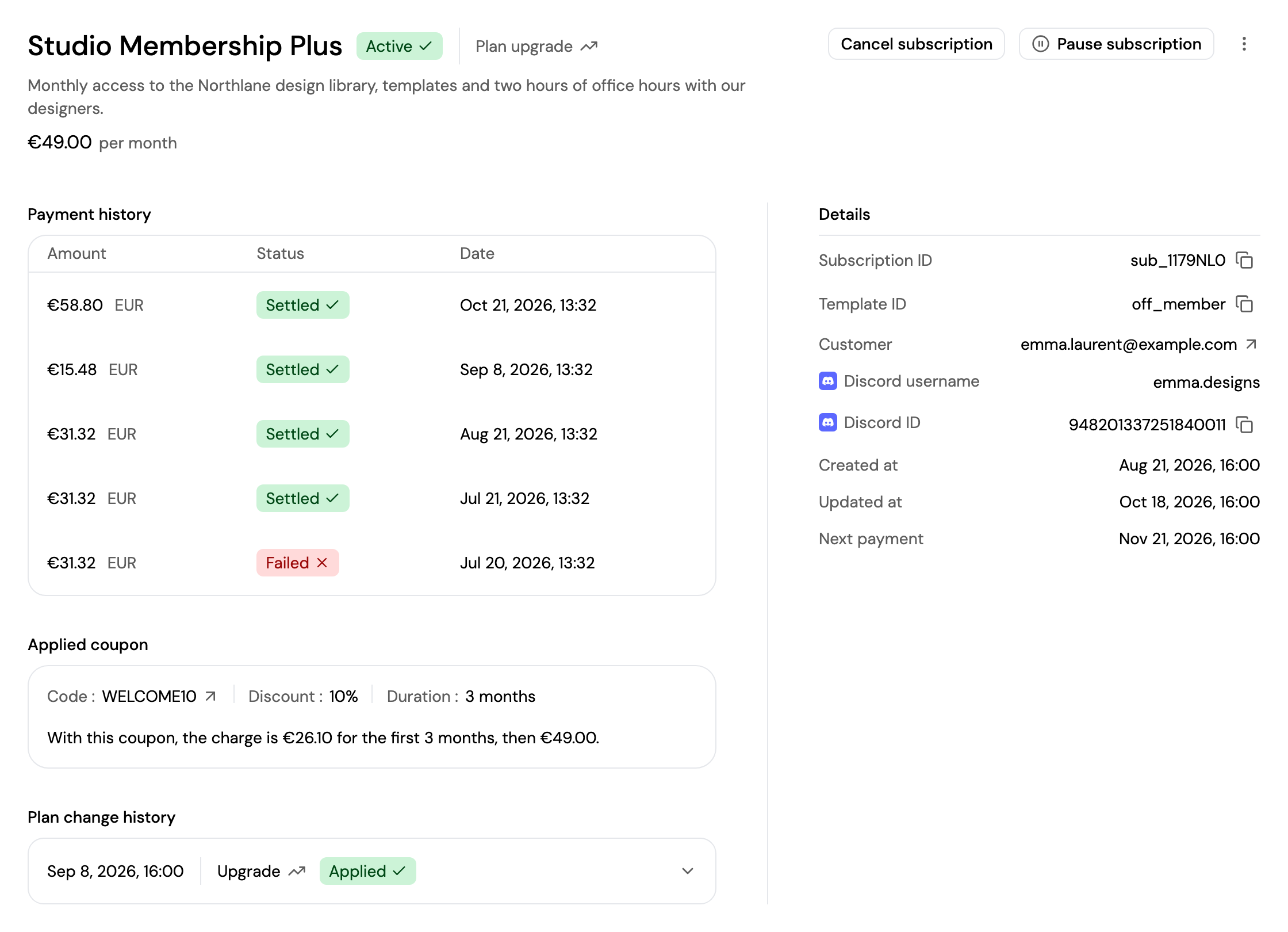
A subscription's page shows its name, status, description, price and billing period, and:
- Payment history: every payment of the subscription. Click one to open it in Transactions → Payments.
- Applied coupon: the coupon on the subscription, its discount and how long it lasts.
- Plan change history: each plan change, with the old and new price, the prorated charge or credit, and when it applied. Click a change to expand it.
- Details: the subscription and template IDs, the customer, their Discord account, and the creation, next payment and scheduled end dates.
Manage a Subscription
The actions available depend on the subscription's status.
| Action | Where | Available when | What it does |
|---|---|---|---|
| Cancel subscription | Button, or ⋮ in the list | Not already cancelled, paused or in initiation | Ends the subscription at the end of the current billing period, or right away if you tick Cancel immediately. It can't be undone. |
| Pause subscription | Button | Active | Stops collecting payments until you resume, or automatically on the date you choose. Nothing is cancelled. |
| Extend trial | Button | Trial | Moves the trial end to a later date. Billing starts when it ends. |
| End trial now | Button | Trial | Ends the trial and charges the first full billing period today. |
| Change plan | ⋮ | Active | Changes the price or billing period. See below. |
| Postpone payment | ⋮ | Active | Moves the next payment to a later date, up to one year ahead. The subscription stays active. |
| Edit subscription name | ⋮ | Always | Renames the subscription. |
Use Pause to stop payments with no end date, and Postpone payment to push back one payment while staying active.
Banners
Some situations show a banner at the top of the subscription, with its own actions:

- Failed payment (Past due or Unpaid): Retry payment charges the customer again, and Copy update link copies a link you can send them to update their payment method. See Smart Retry for automatic retries.
- Trial: shows when the trial ends. Cancel extension restores the original trial end.
- Paused: shows since when payments are paused and when they resume. Resume payment resumes them now.
- Billing postponed: shows the new payment date. Cancel postponement restores the original date.
- Pending cancellation: shows when the subscription ends. Keep subscription removes the cancellation, so it keeps renewing.
- Scheduled plan change: shows a plan change that applies at a later date.
Change plan
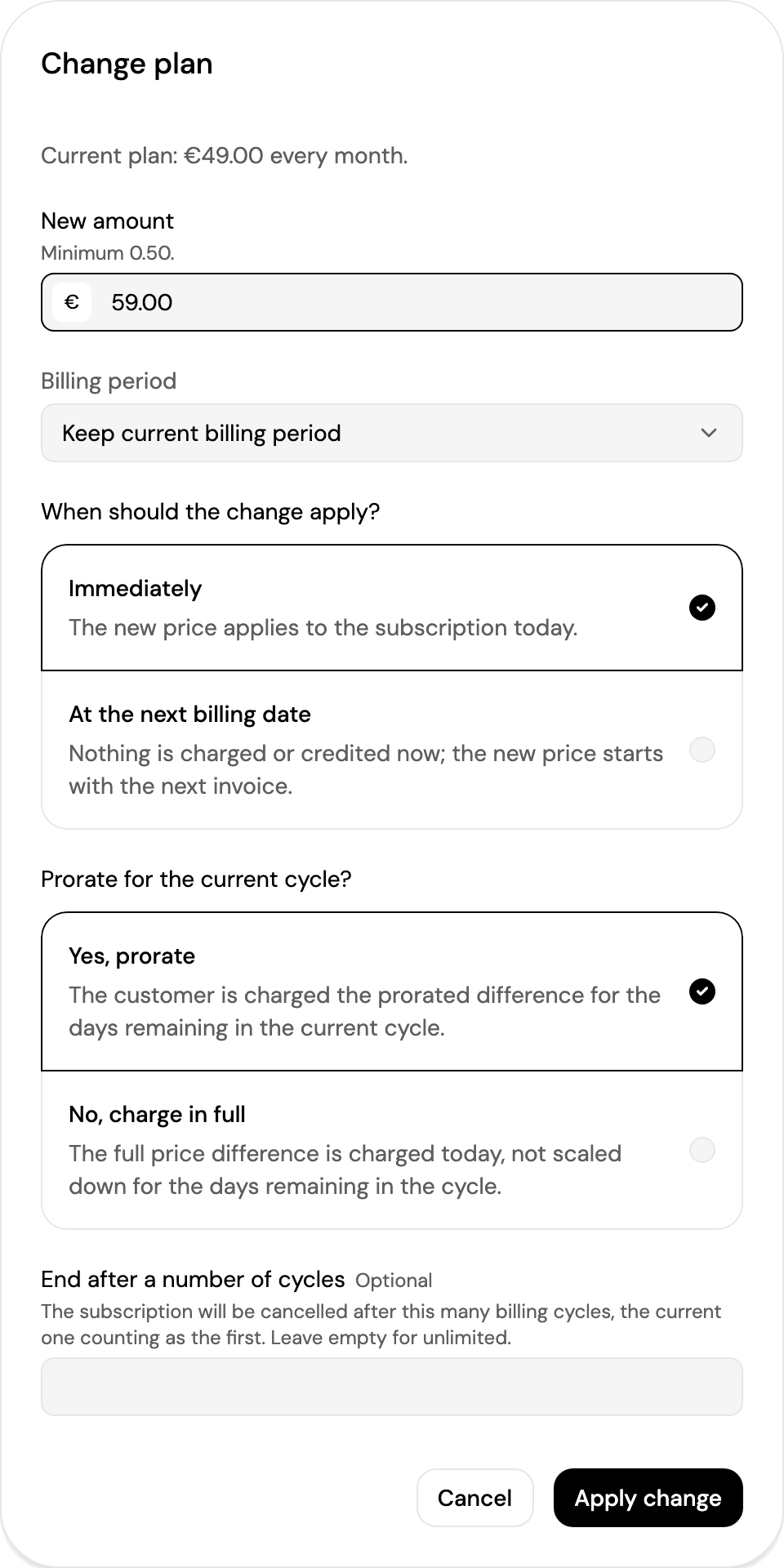
Click ⋮ → Change plan and choose:
- New amount: at least 0.50.
- Billing period: keep the current one, or choose Weekly, Monthly, Annually or Custom.
- When should the change apply?: Immediately, or At the next billing date. Moving to a shorter billing period always applies at the end of the current period.
- Prorate for the current cycle? (when the change applies immediately): Yes, prorate charges or credits only the difference for the days left in the cycle; No, charge in full charges the full difference today.
- End after a number of cycles (optional): end the subscription after this many billing cycles, the current one counting as the first.
Click Apply change. The change shows in the Plan change history. See Updating a Subscription for how proration is calculated.
Updated about 4 hours ago