

Customers
Available via: Dashboard only
Customers lists everyone who has paid you. Open a customer to see their payments, subscriptions and saved payment methods, and to charge or update them.
How to Access
- Open your Inflow Dashboard.
- Click Customers in the sidebar.
The page requires access to customers. Editing a customer requires write access to customers, and charging one requires write access to payments. See Roles and Permissions.
Your Customers
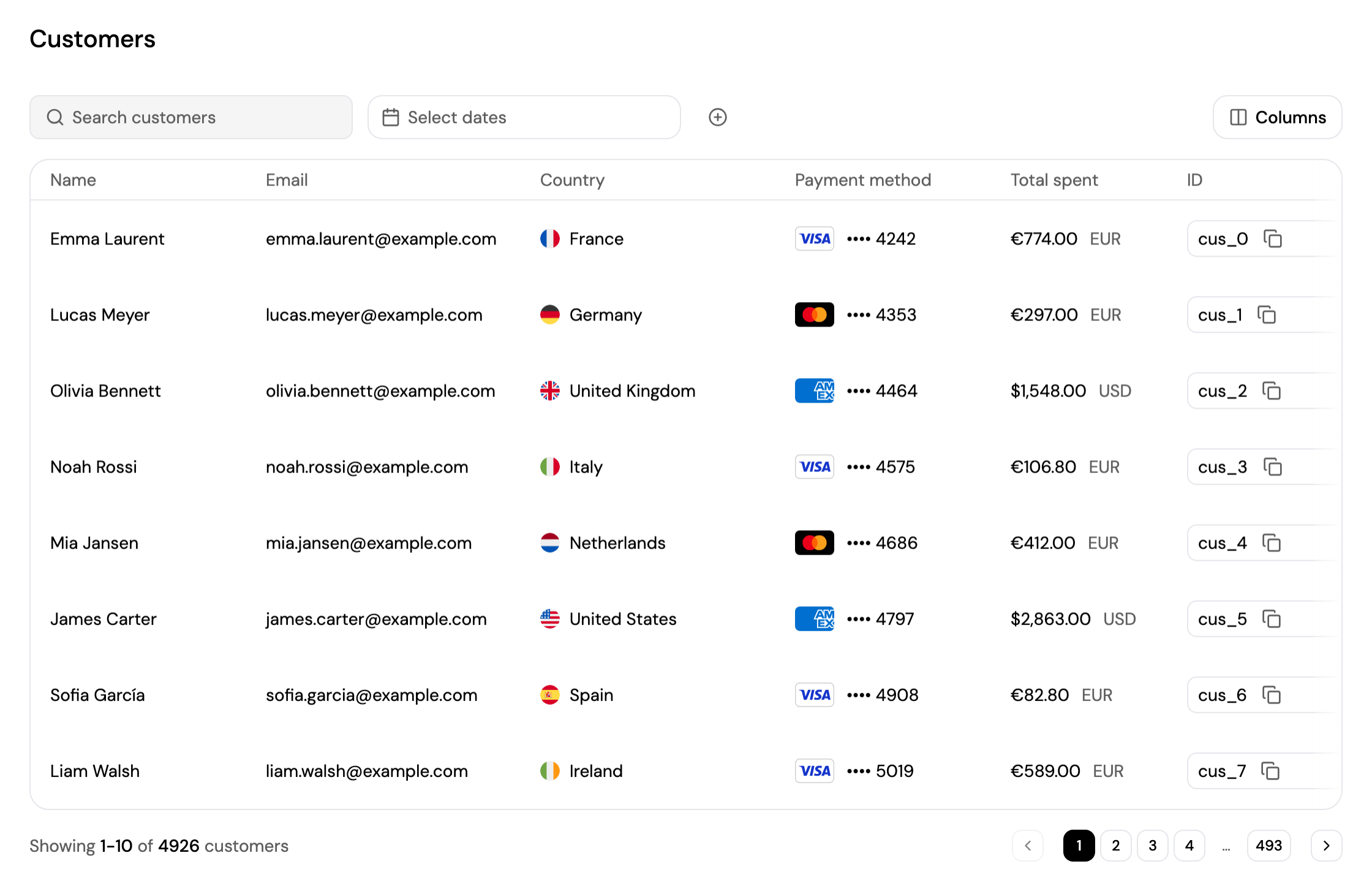
Each customer shows their name, email, country, payment method, total spent, ID and creation date.
- Search for a customer, and pick a date range with Select dates.
- Click + to filter by Country.
- Click Columns to choose which columns are shown.
- Click a customer to open their page.
Customer Details
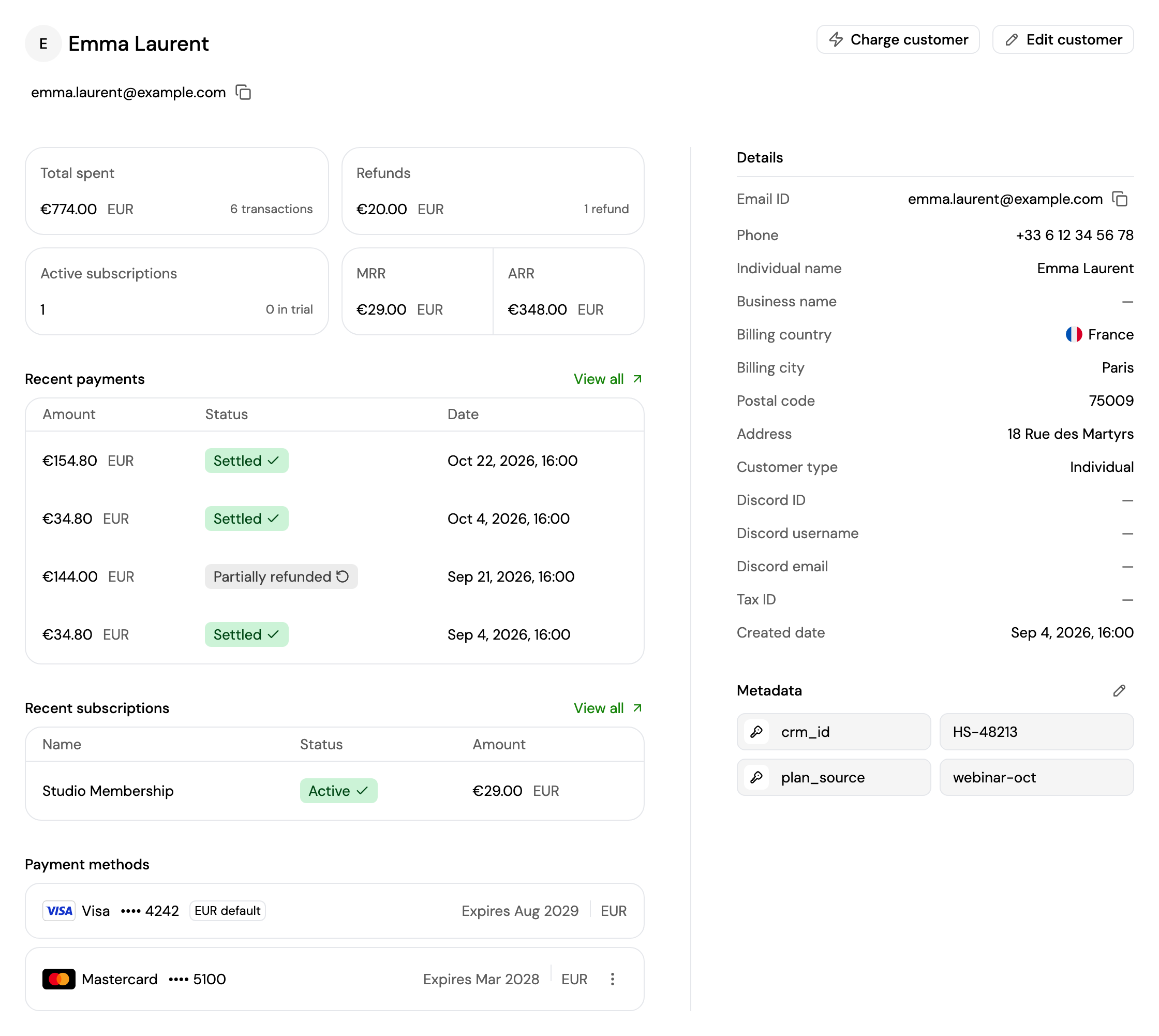
A customer's page shows:
- Totals: Total spent with the number of transactions, Refunds, Active subscriptions with those in trial, and their MRR and ARR. Amounts in another currency that can't be converted aren't included, and a note says so.
- Recent payments and Recent subscriptions: click one to open it, or View all to see them all in Transactions → Payments or Subscriptions.
- Payment methods: the cards and accounts the customer has saved, with the default one for each currency.
- Details: contact details, billing address, customer type, tax ID, Discord account and creation date.
- Metadata: your own key and value pairs, for example an ID from your CRM.
From a customer's page you can:
- Charge customer: charge one of their saved cards. It opens Create payment with the customer already chosen. It's shown when Inflow has enabled it for your account and the customer has an email address and a saved card. See Create a Payment.
- Edit customer: change their email address.
- Change the default payment method: click ⋮ next to a payment method and Set as default. It becomes the default for its currency, and Inflow also tries to pay the customer's open invoices with it.
- Edit metadata: click the pencil icon next to Metadata to change, remove or Add metadata.
Updated about 4 hours ago
Did this page help you?