
Transactions
Available via: Dashboard and API
Transactions shows the money moving through your sellers' accounts, in three tabs: Payments, Payouts and Deposits.
How to Access
- Open your Inflow Dashboard.
- Go to Connect → Transactions.
Finding a Transaction
Every tab works the same way:
- Search, pick a date range with Select dates, and filter by Status.
- Click + to add more filters:
- Payments: Amount, Currency, Payment method, Seller ID and Seller email.
- Payouts: Amount, Currency, Payout method and Seller ID.
- Deposits: Amount and Currency.
- Click Export to download the list as a CSV file, following your filters.
- Click Columns to choose which columns are shown.
- Click a row to open its details.
Payments
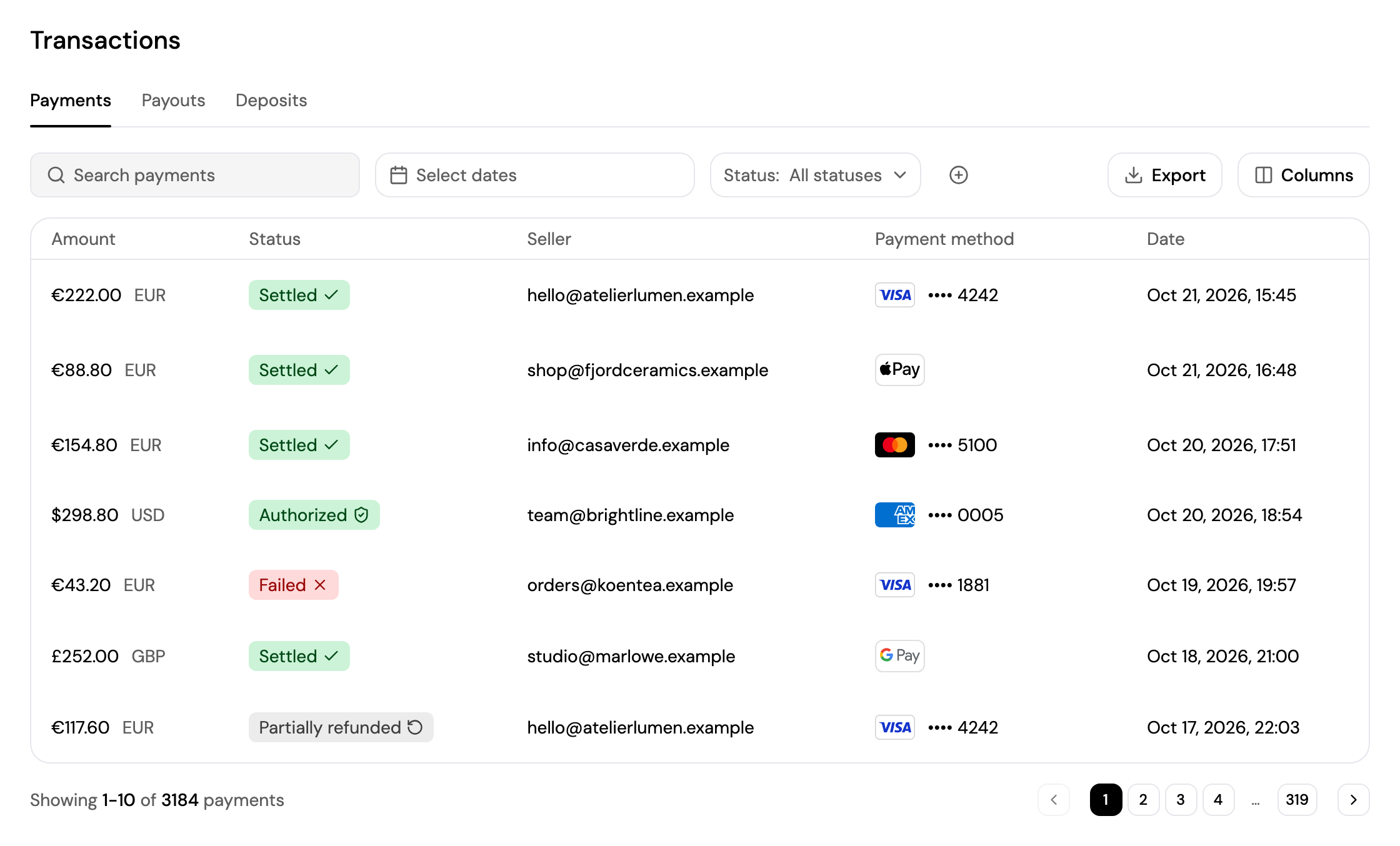
The payments customers made to your sellers, with the amount, status, seller, payment method and date. See Understanding Payment Statuses.
Open a payment to see who received it, its Payment breakdown, the payment method, its details and timeline.
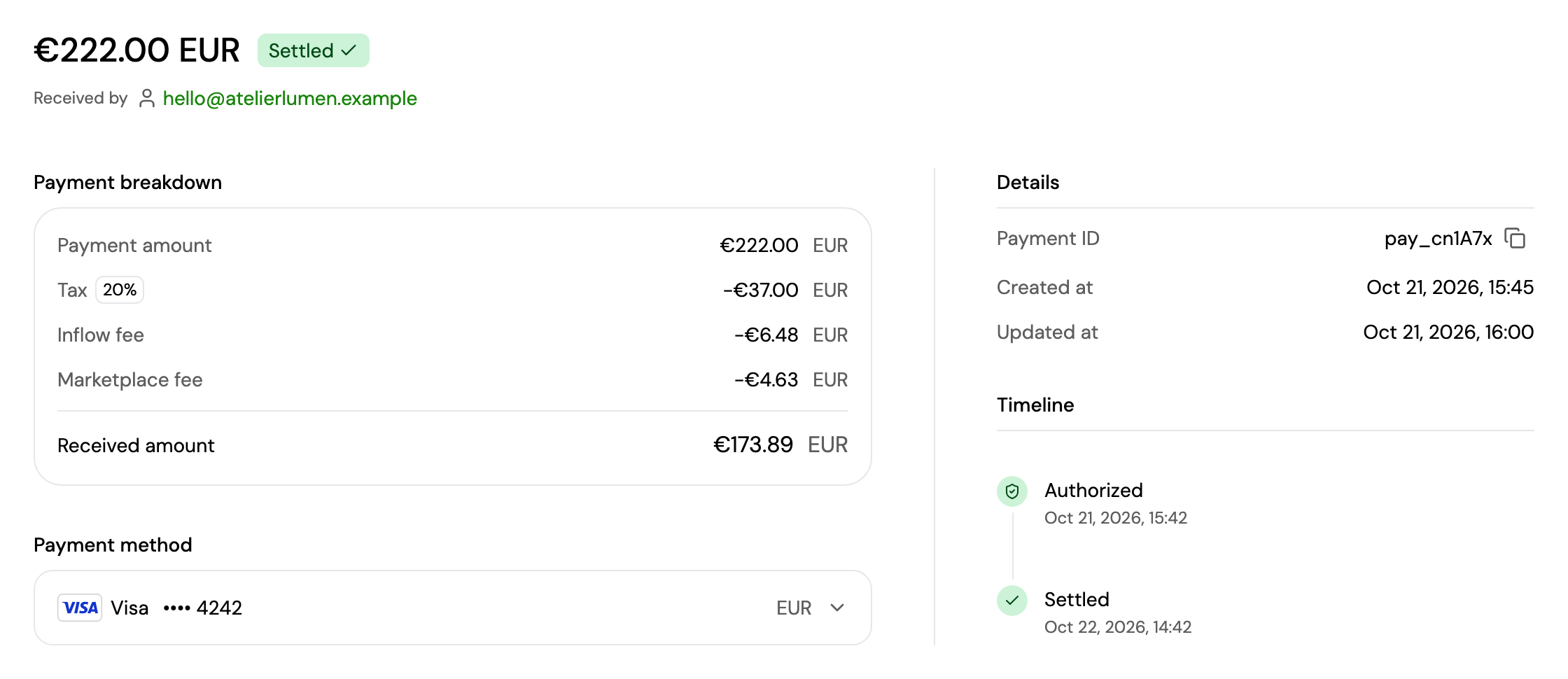
The breakdown shows how the payment is split: the tax, Inflow fee, your Marketplace fee, any refunds, and the Received amount that goes to the seller.
Payouts
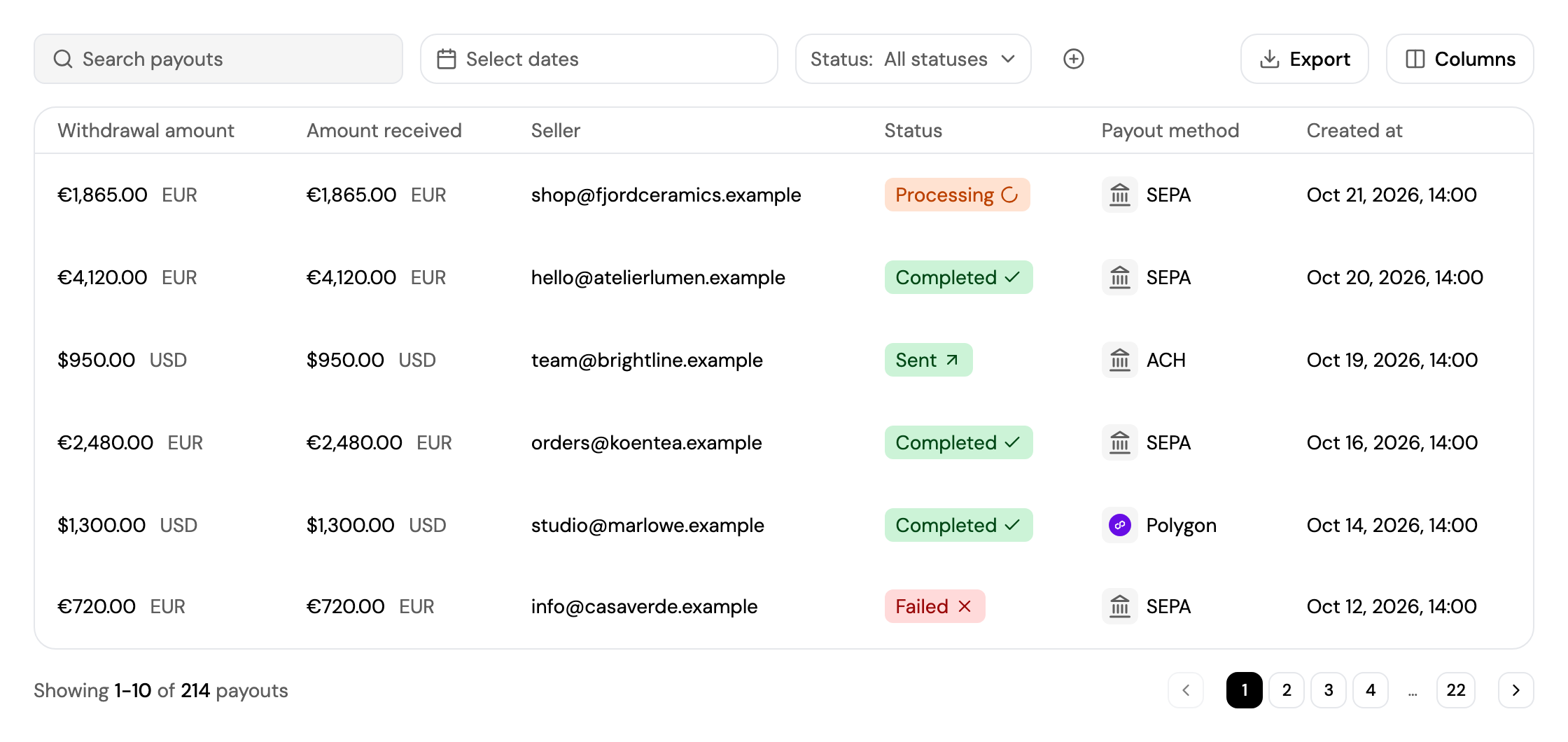
Your sellers' withdrawals to their bank accounts and wallets, with the amount withdrawn, the amount received, the seller, status, payout method and date. Open a payout to see its breakdown, the account it was sent to and its timeline, and View on explorer for a wallet payout.
Deposits
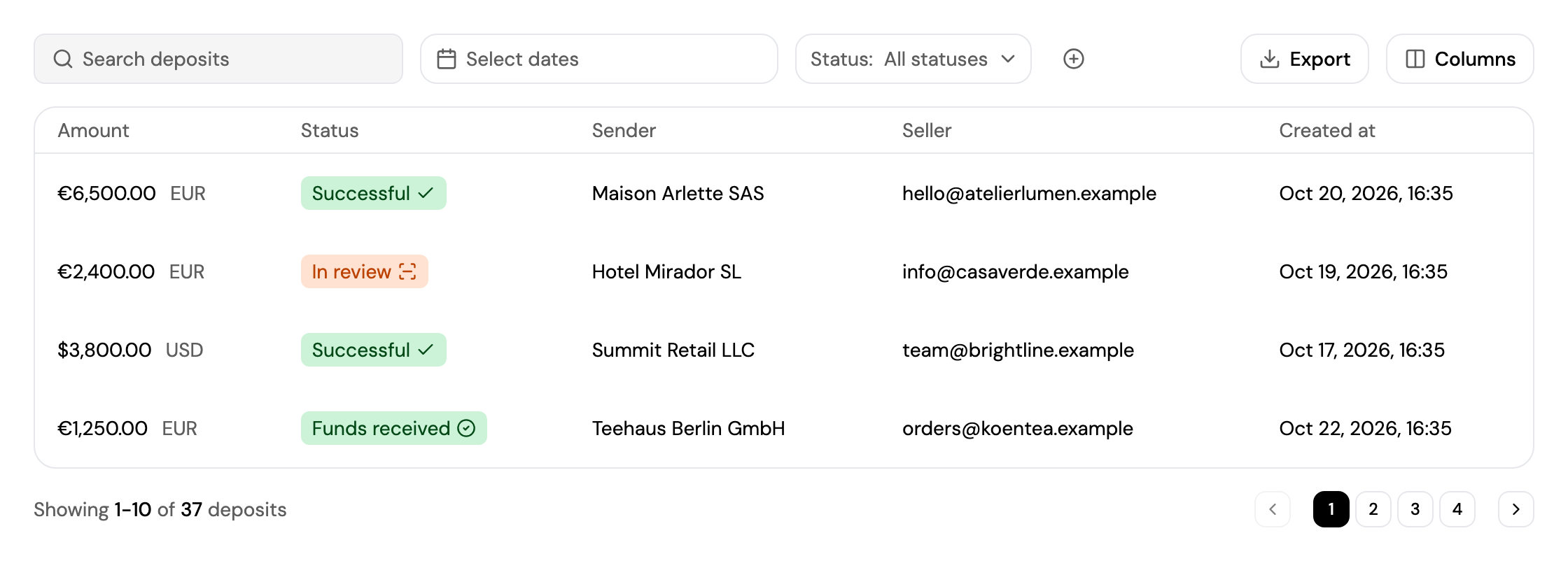
The bank transfers your sellers received on their virtual accounts, with the amount, status, sender, seller and date. Open a deposit to see its breakdown, including your marketplace fee, the sender's details and its timeline.
Refunds and other actions on these transactions are done through the API. See Acting on Behalf of a Sub-merchant.
Updated about 4 hours ago