
Balances
Available via: Dashboard only
Balances shows how much money you have, what's on its way, and your latest payouts and conversions. From here you withdraw your funds and convert between currencies.
How to Access
- Open your Inflow Dashboard.
- Click Balances in the sidebar.
Withdrawing requires write access to payouts, and converting requires write access to swaps. The amounts awaiting settlement are shown to members with access to payments. See Roles and Permissions.
Your Balances
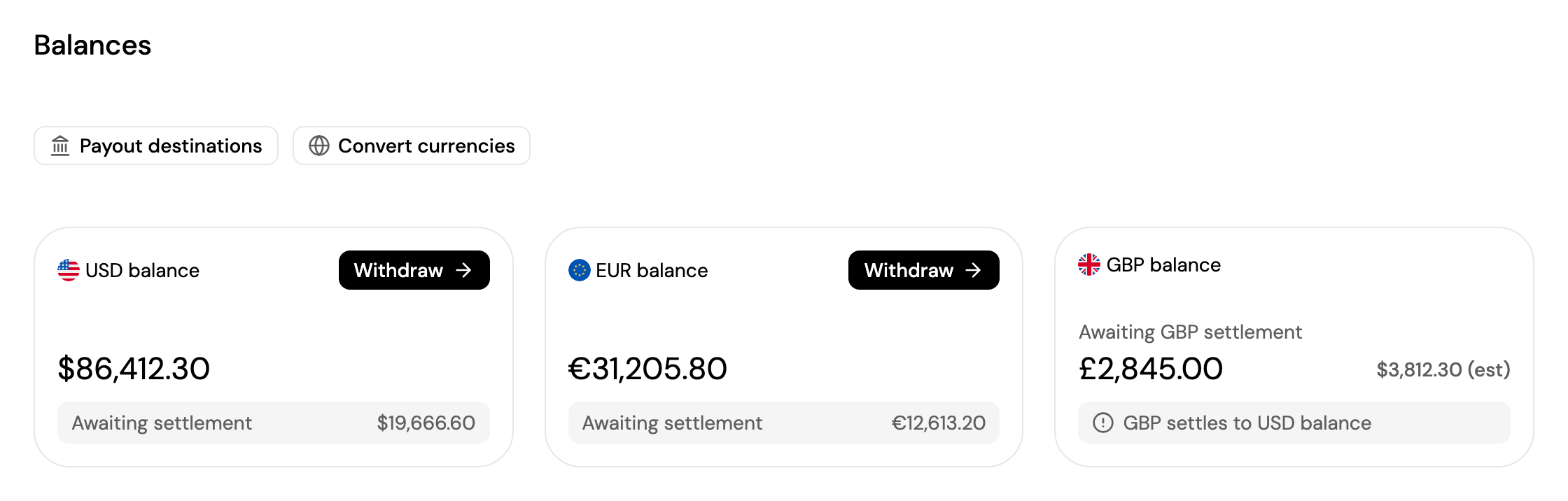
| Card | What it shows |
|---|---|
| USD balance / EUR balance | Your available balance, ready to withdraw or convert. Awaiting settlement is the money from your payments that hasn't reached your balance yet. |
| GBP balance | The GBP payments awaiting settlement, with an estimate in USD. GBP settles to your USD balance. |
At the top of the page:
- Payout destinations opens Payout Accounts, where you manage the bank accounts and wallets you withdraw to.
- Convert currencies converts between your USD and EUR balances.
A message may also appear above the cards:
- Complete business verification to unlock withdrawals (or identity verification, for individuals): withdrawals are available once your account is verified. Click Start your KYB or Continue verification.
- You can withdraw up to … to wallets until activation is complete: your identity is verified and your account is being activated. Until then, withdrawals to wallets are limited to the amount shown.
- Conversion in progress: a conversion is running. Your balances update automatically, and new conversions are paused until it finishes.
See Understanding Your Balance.
Withdraw
Click Withdraw on the USD or EUR card and follow the steps:
- Enter the Amount, or click Use max, and choose the Destination: one of your bank accounts or wallets. For a wallet, also choose the Network. The minimum is 1.50 in the balance's currency.
- Some bank accounts need a supporting document for each withdrawal: an invoice or agreement for businesses, or a payslip or similar document for individuals. If you don't have one, you can generate an invoice for the payout from the same step.
- Check the fees and the destination. For a bank account, you can add a Payment reference, such as an invoice number, that may appear on the recipient's statement.
- Confirm. If you've turned on two-factor authentication, enter the 6-digit code from your authenticator app.
The withdrawal is then sent, or, if you've turned on Payout Approvals, it waits for approvals before it's sent. Follow it in Transactions → Payouts.
A destination you can't use right now is shown as Not available, Temporarily paused or Exceeds limit. See How Payouts Work.
Convert Currencies
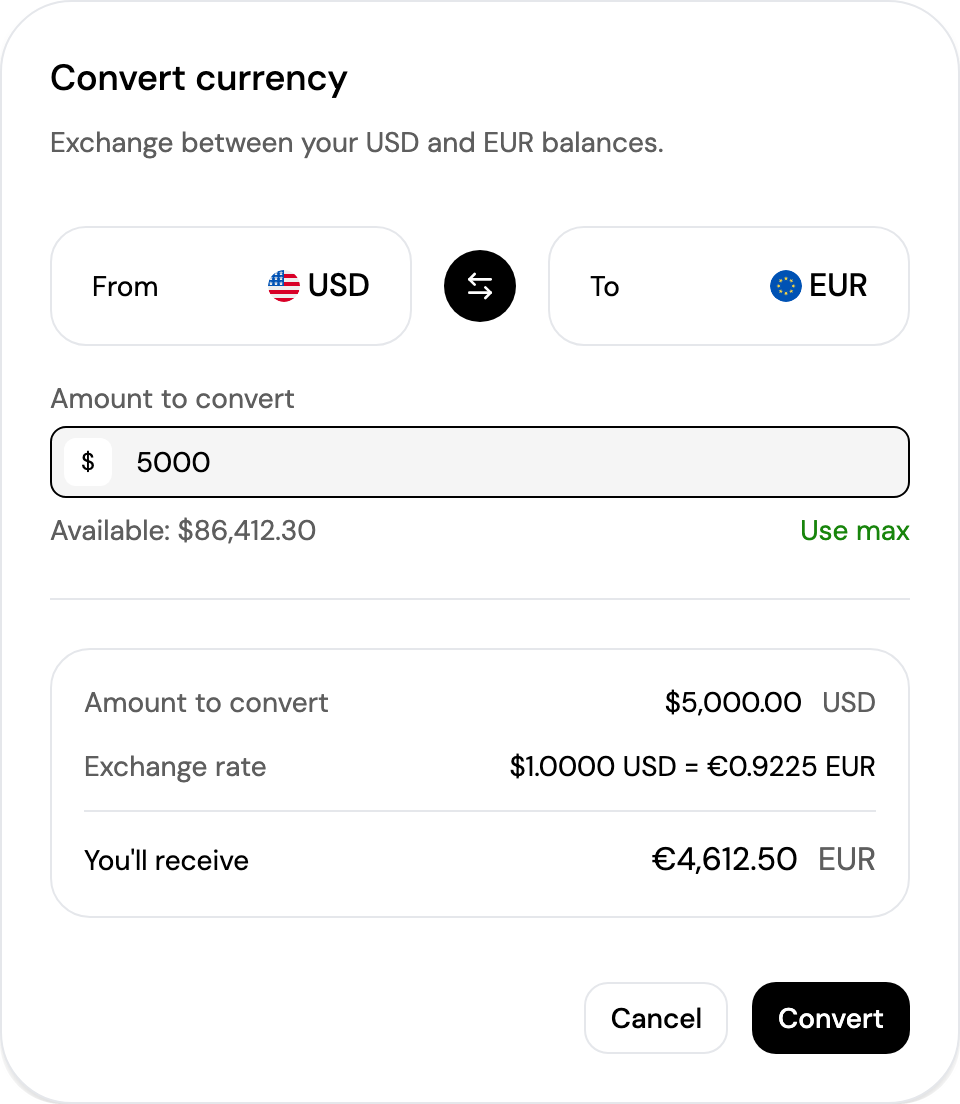
Click Convert currencies to exchange between your USD and EUR balances:
- Choose the direction with From and To; click the arrows between them to swap.
- Enter the Amount to convert, or click Use max.
- Check the Exchange rate and what You'll receive, and click Convert.
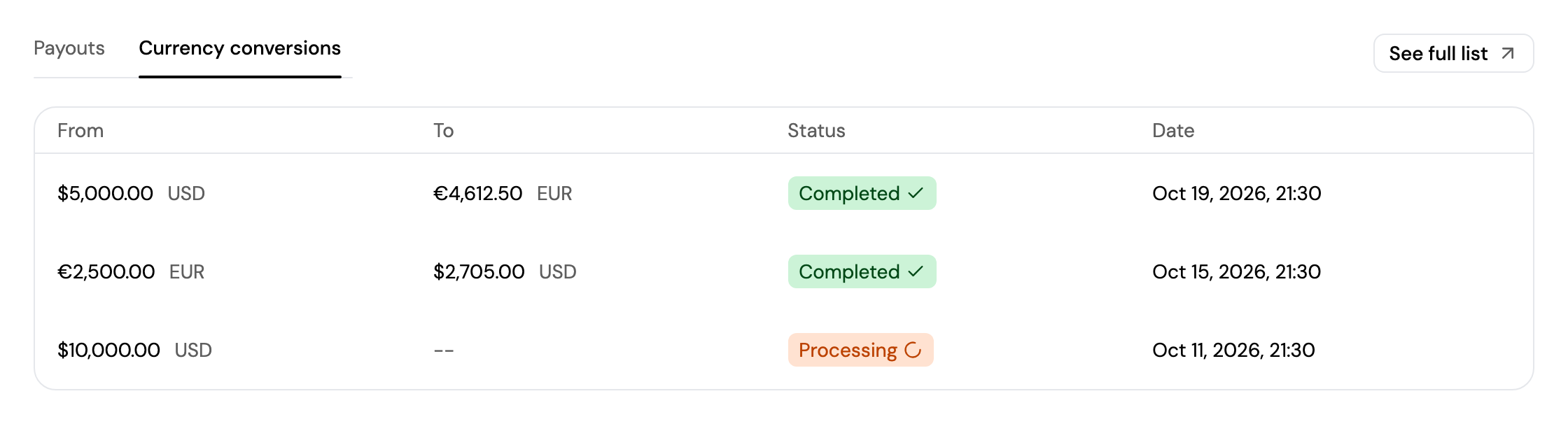
The conversion appears under Currency conversions below, and in Transactions → Currency Conversions.
Recent Payouts and Conversions
At the bottom of the page, your 5 latest payouts and conversions are shown in two tabs. Click See full list to open them in Transactions.
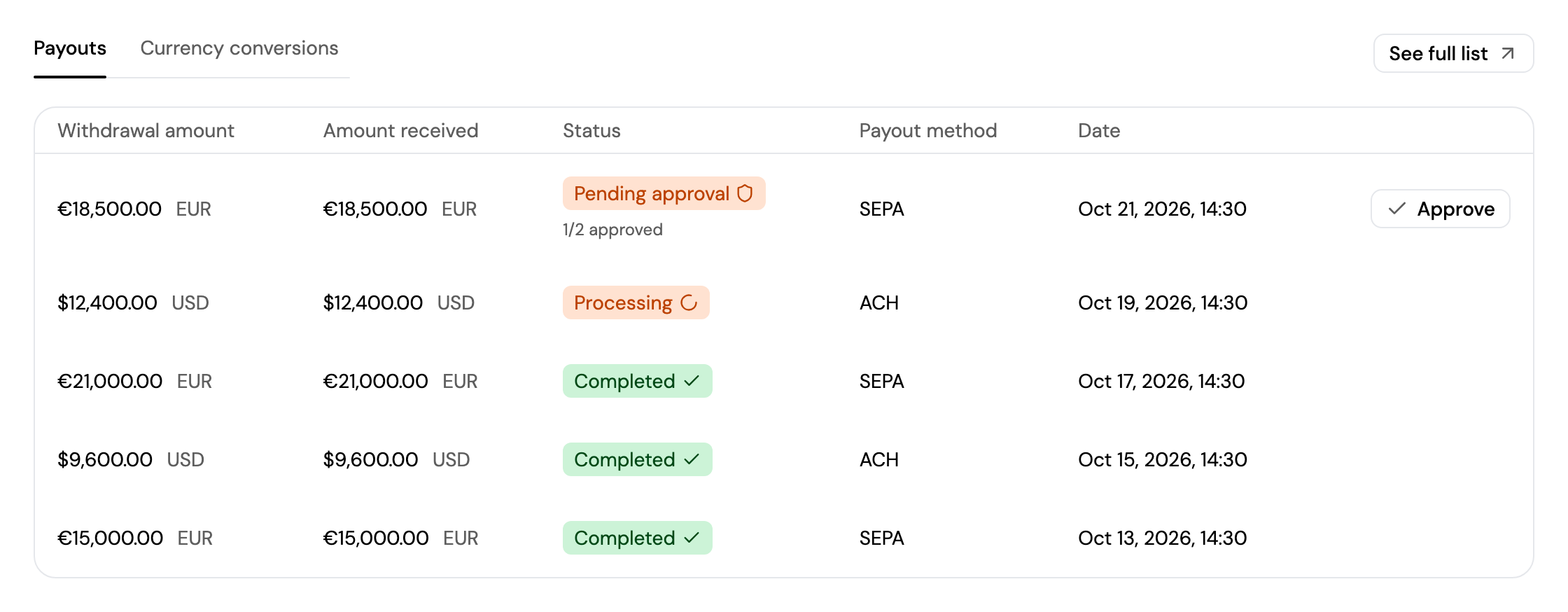
A payout waiting for your approval can be approved from here too: click Approve. See Approve a Payout.
Updated about 4 hours ago