
Payments
Available via: Dashboard only
The Payments tab lists every payment made by your customers. From here you can refund and capture payments, and create a payment for a customer.
How to Access
- Open your Inflow Dashboard.
- Go to Transactions → Payments. It's the default tab.
The tab requires access to payments. Refunding, capturing and creating payments requires write access. See Roles and Permissions.
Your Payments
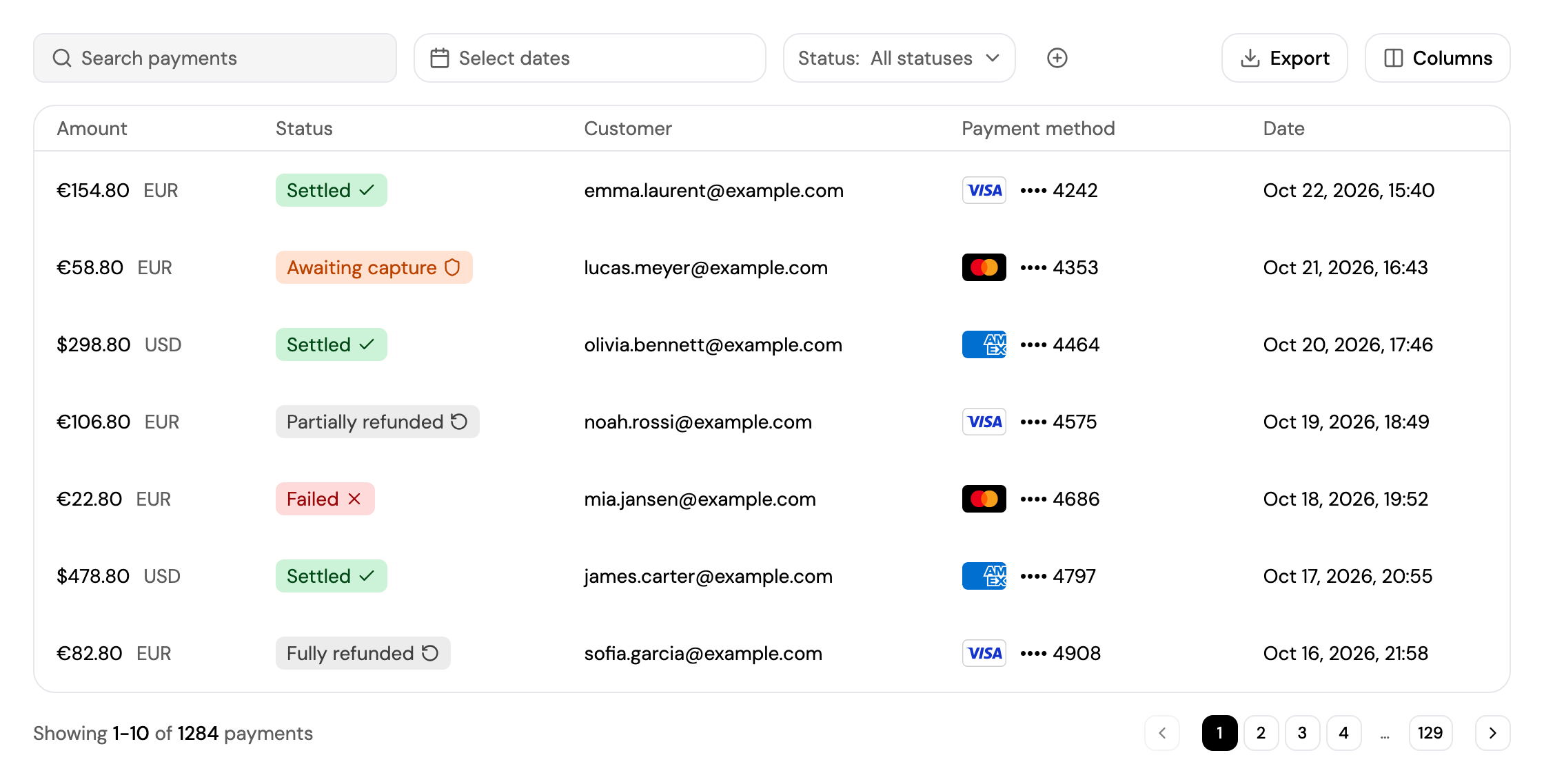
Each payment shows its amount, status, customer, payment method and date. See Understanding Payment Statuses for what each status means, and Finding a Transaction for search, filters and export.
Payment Details
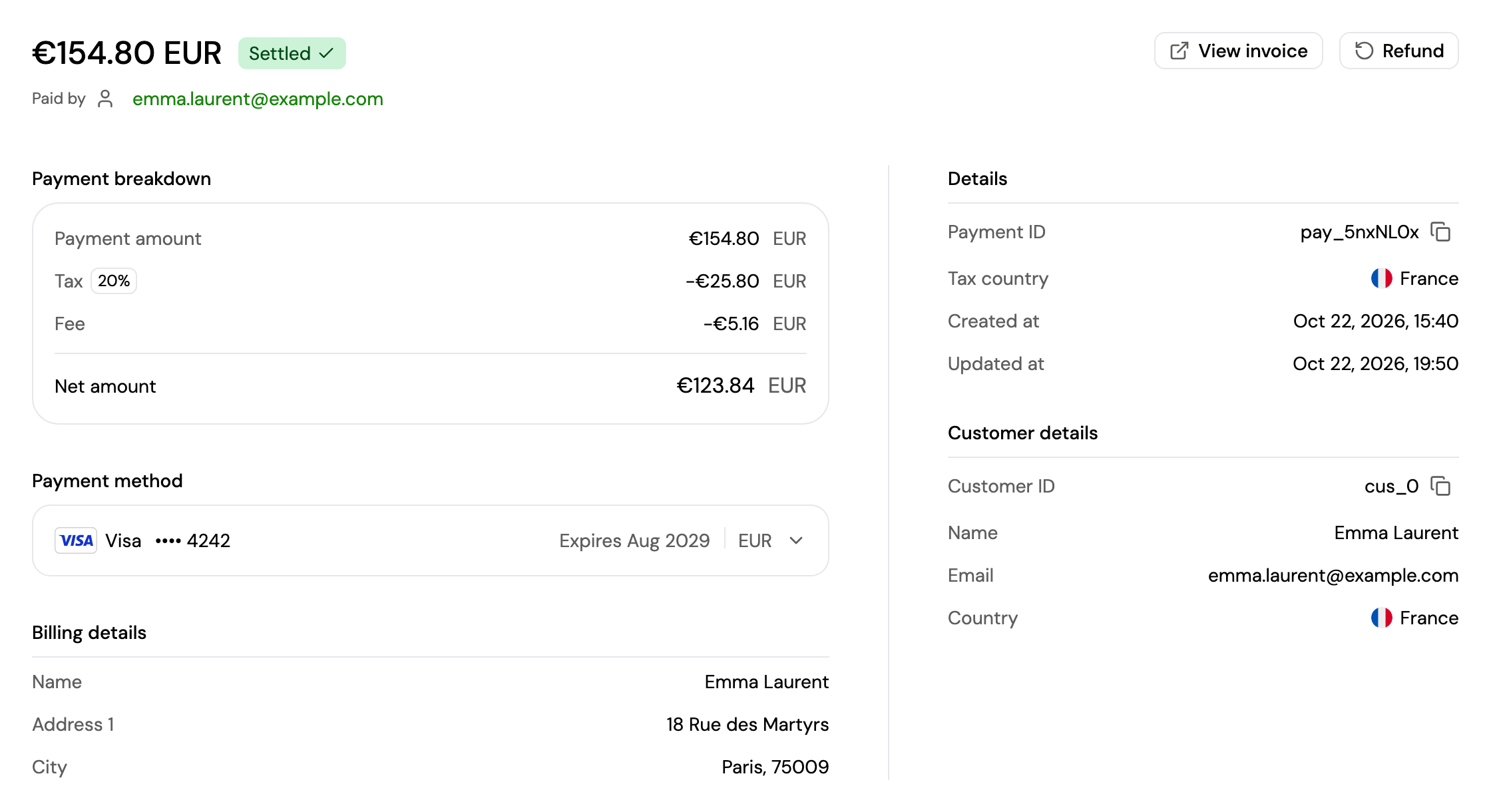
Click a payment to see its breakdown (amount, tax, fee and the net amount you receive), the payment method, the billing details and the customer. From there you can:
- View invoice: open the invoice sent to the customer.
- Refund the payment.
- Capture payment, for a payment that's Awaiting capture.
Refund a payment
Click Refund and follow the steps:
- Enter the Amount to refund, or leave it empty to refund everything that's left. The amount excludes VAT; the matching VAT is added automatically.
- Optionally, add a Reason. Only your team sees it, on the payment.
- Click Confirm refund.
- A refund can't be cancelled once confirmed.
- It reaches the customer's bank statement within 5 to 10 days.
- The fees of the original payment aren't refunded, and refunds have no extra fee.
- The refund is taken from your balance. If your balance is too low, the refund is blocked until you top it up.
You can refund a payment several times, up to its full amount; it then shows Partially refunded or Fully refunded. See Refunds.
Capture a payment
A payment created with manual capture is only authorized at first: the money is reserved on the customer's card but not taken. It shows Awaiting capture.
Open the payment and click Capture payment to collect it. Capture before the authorization expires, typically after around 7 days, or the reservation is released.
Create a Payment
Charge an existing customer's saved card from the dashboard, for example for an extra service or a missed renewal.
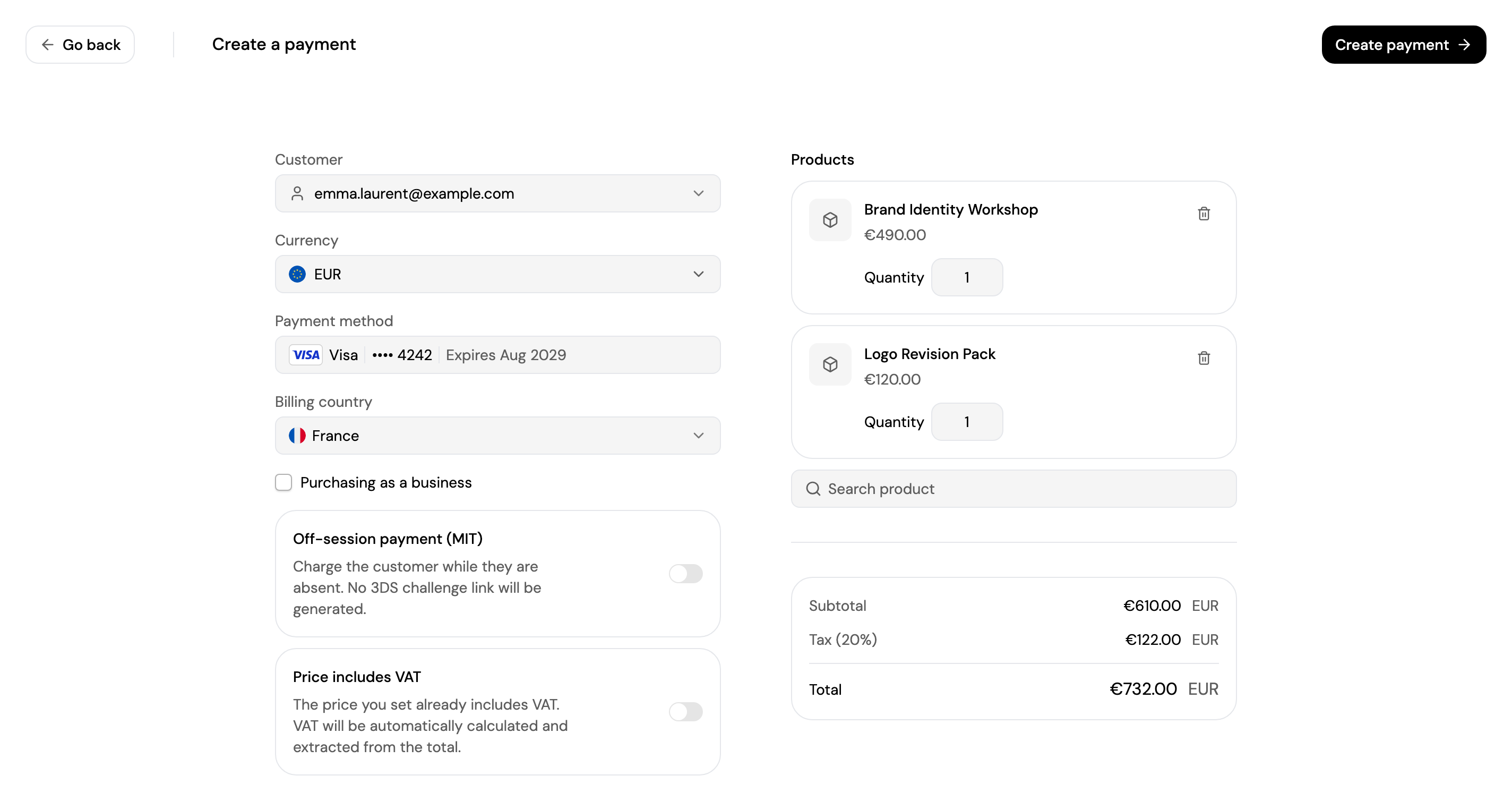
Create payment is available once Inflow has enabled it for your account. You'll find it in three places:
- the Create payment button on the Payments tab;
- Search, by typing "Create payment";
- Charge customer on a customer's page.
Click Create payment and follow the steps:
- Choose the Customer. Only customers with an email address and a saved card can be charged.
- Choose the Currency and the Payment method. Changing the currency removes the products already added, because their prices are in the previous currency.
- Choose the Billing country, and the postal code for the United States. Tick Purchasing as a business to add the business name and tax ID.
- Add the Products and their quantities. The total, with tax, is calculated as you go. The minimum is 0.50 in the chosen currency.
- Turn on Price includes VAT if your product prices already include VAT; VAT is then extracted from the total instead of added to it.
- Click Create payment, check the summary and click Charge.
If the charge goes through, the payment's page opens.
Off-session payments
When Off-session payment (MIT) is shown and turned on, the card is charged as a merchant-initiated transaction while the customer isn't present, without asking them for 3D Secure. This option is only available if Inflow has enabled it for your account.
When it's off, the customer's bank may ask for 3D Secure authentication. The payment is then created, and you get a link to send to your customer so they can complete the authentication.
Updated about 4 hours ago