
Coupons
Available via: Dashboard only
Coupons are discount codes your customers enter at checkout. There are two types:
- One time coupons discount one-time payments, such as payment links and orders from your Shopify store.
- Subscription coupons discount the subscription templates you choose, for one or more billing cycles.
How to Access
- Open your Inflow Dashboard.
- Go to Product catalog → Coupons.
The page requires access to coupons. Creating, editing, activating and deactivating coupons and promotion codes requires write access. See Roles and Permissions.
Your Coupons
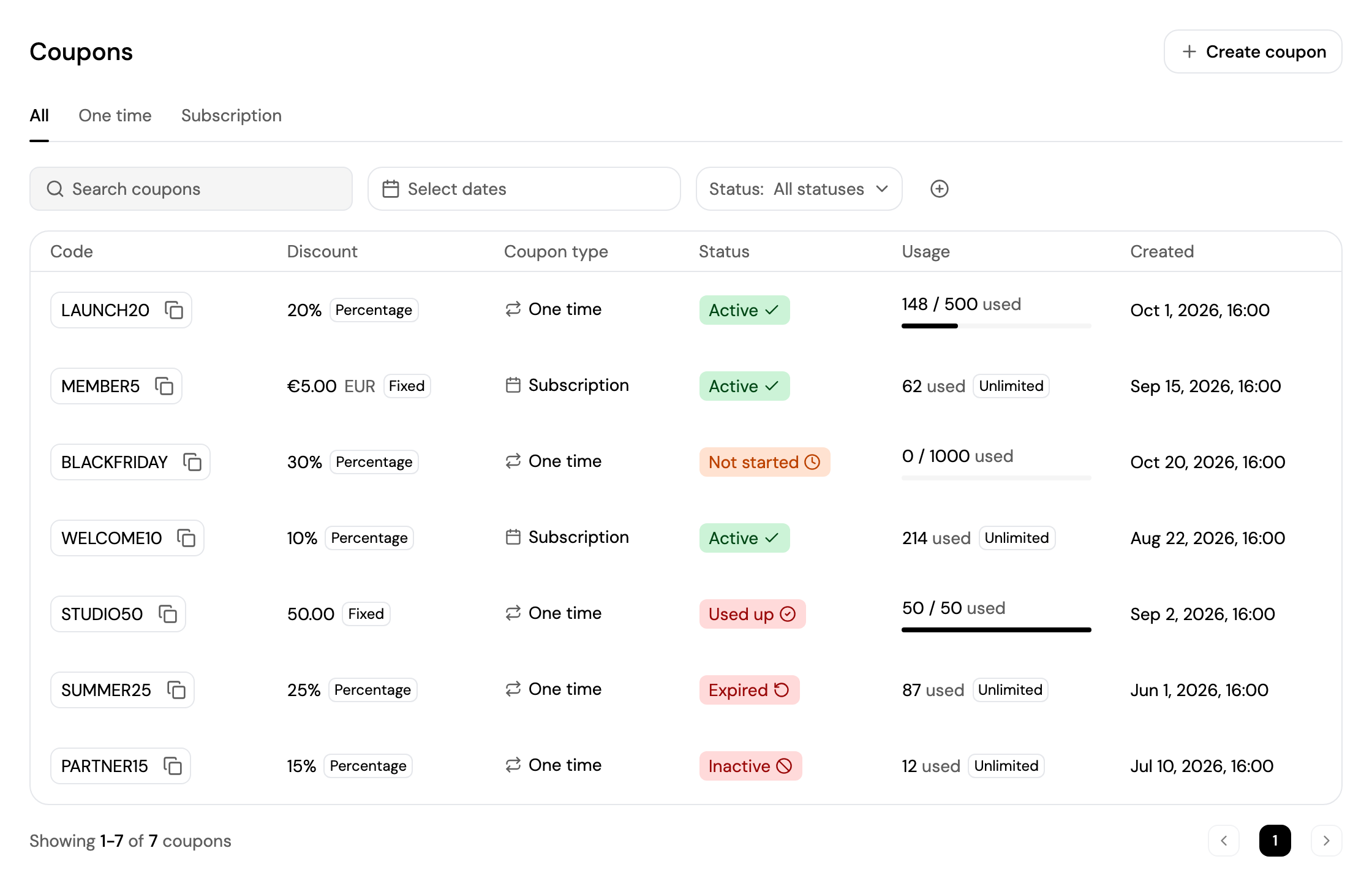
- All, One time and Subscription show your coupons by type.
- Search for a coupon, pick a date range with Select dates, filter by Status, and click + to filter by Discount type.
- Each coupon shows its code (with a copy button), discount, type, status, usage and creation date.
- Click a coupon to open its page.
| Status | Meaning |
|---|---|
| Active | Customers can use the coupon. |
| Not started | The coupon's start date hasn't come yet. |
| Expired | The coupon's redeem by date has passed. |
| Used up | The coupon has reached its usage limit. |
| Inactive | You've deactivated the coupon. |
Create a Coupon
Click Create coupon and follow the steps.
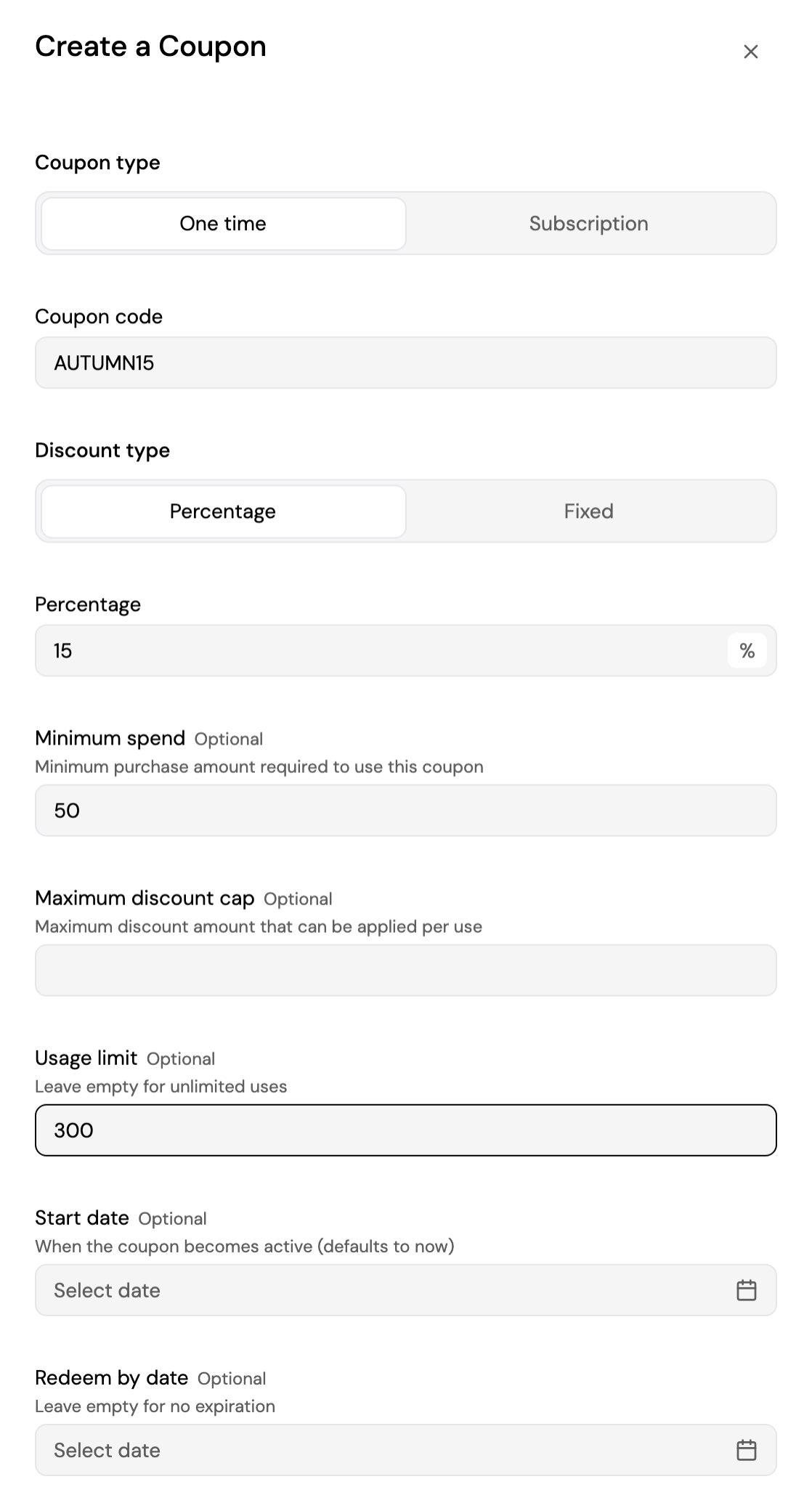
- Coupon type: One time or Subscription.
- Coupon code: what customers enter at checkout, for example
AUTUMN15. Uppercase letters, digits,_and-, 2 to 50 characters. - For a subscription coupon, Apply to templates: the subscription templates it applies to. Choose at least one.
- Discount type: Percentage (1 to 100%) or Fixed amount. For a subscription coupon on templates in several currencies, you set the fixed amount for each currency.
- For a subscription coupon, Discount duration: Once (the first billing cycle), Repeating (a number of cycles you choose) or Forever.
- For a one-time coupon, optionally a Minimum spend, and for a percentage, a Maximum discount cap per use.
- Optionally:
- Usage limit: how many times the coupon can be used. Leave it empty for unlimited uses.
- Start date: when the coupon becomes active. It defaults to now.
- Redeem by date: when it expires, up to 5 years ahead. Leave it empty for no expiration.
Click Create coupon. The coupon's page opens.
To let customers complete a one-time order at €0 with a 100% coupon, without entering payment details, turn on Zero charge orders.
Coupon Details
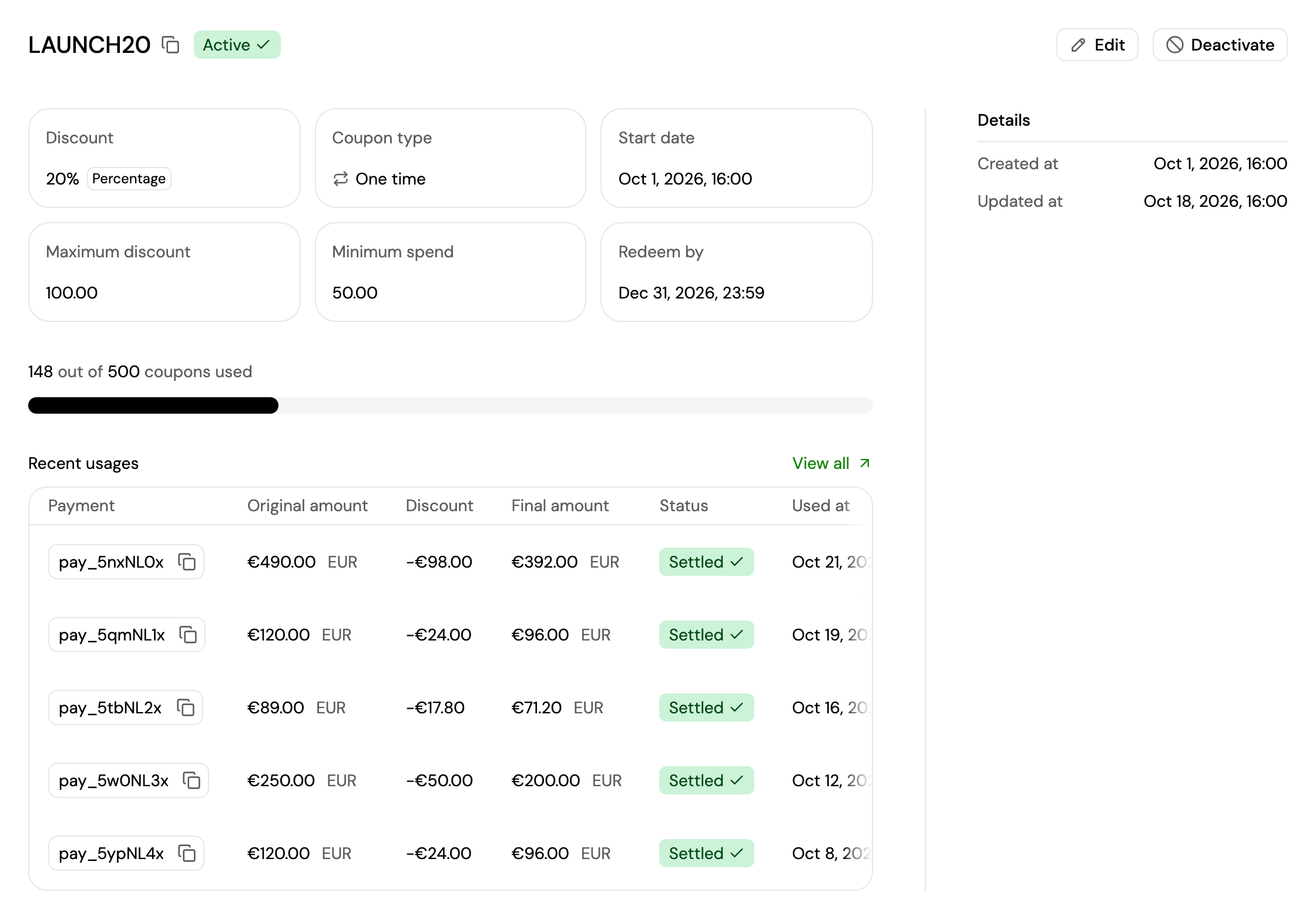
A coupon's page shows its code and status, and:
- Discount, Coupon type, Start date, and when set, Maximum discount, Minimum spend and Redeem by. With a usage limit, a bar shows how many coupons have been used.
- Recent usages: for a one-time coupon, the latest payments it discounted, with the original amount, discount and final amount. Click View all to see them all in Transactions → Payments.
- Details: when the coupon was created and last updated.
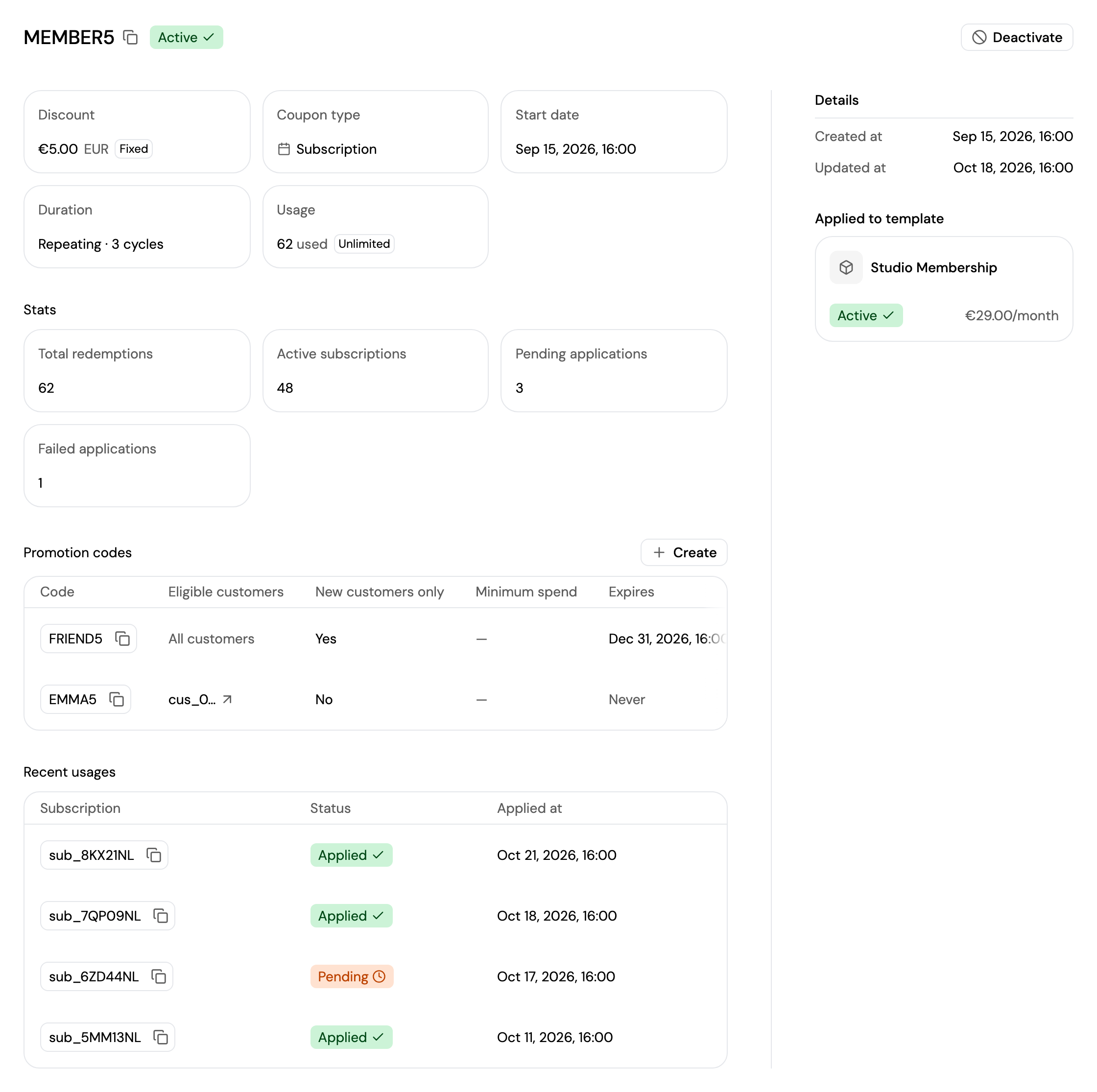
A subscription coupon's page also shows:
- Duration of the discount.
- Stats: total redemptions, active subscriptions, and pending and failed applications.
- Promotion codes: the extra codes for this coupon.
- Recent usages: the latest subscriptions it was applied to, with their status.
- Applied to template: the subscription templates it discounts.
From a coupon's page you can:
- Edit a one-time coupon: change its Usage limit (not below the number of uses so far) and Redeem by date. Everything else is locked once the coupon is created, and subscription coupons can't be edited.
- Deactivate the coupon so customers can no longer use it, or Activate it again. Coupons can't be deleted.
Promotion codes
A promotion code is another code for a subscription coupon, with its own rules: for example a code for one customer, or for new customers only. Customers enter it at checkout like the coupon code, and get the coupon's discount.
On a subscription coupon's page, click Create under Promotion codes and follow the steps:
- Promotion code: the code customers enter, for example
FRIEND5. - Customer (optional): only this customer can use it.
- New customers only: only customers who have never completed a payment with you can use it.
- Minimum spend (EUR) and Minimum spend (USD) (optional).
- Expiry date (optional): no later than the coupon's redeem by date.
- Max redemptions (optional): leave it empty for unlimited redemptions.
Click Create promotion code. Click Deactivate or Reactivate next to a promotion code to stop or resume it.
See Creating and Managing Coupons for how coupons are applied at checkout.
Updated about 3 hours ago