
Payout Accounts
Available via: Dashboard only
The Payout accounts tab is where you manage where your money goes when you withdraw. It has four sections: your bank accounts and wallets, automatic payouts, the waiting period for new destinations, and payout approvals.
How to Access
- Open your Inflow Dashboard.
- Go to Settings → Payout accounts.
What you see depends on your role:
- The tab requires access to payout accounts. Adding and deleting accounts requires write access.
- Auto payout requires access to automatic payouts.
- Destination waiting period and Payout approvals require access to the payout policy, which only the Owner role has by default.
Adding or deleting an account, and saving any setting on this tab, asks for a code from your authenticator app if you've turned on two-factor authentication.
Manage Your Bank Accounts and Wallets
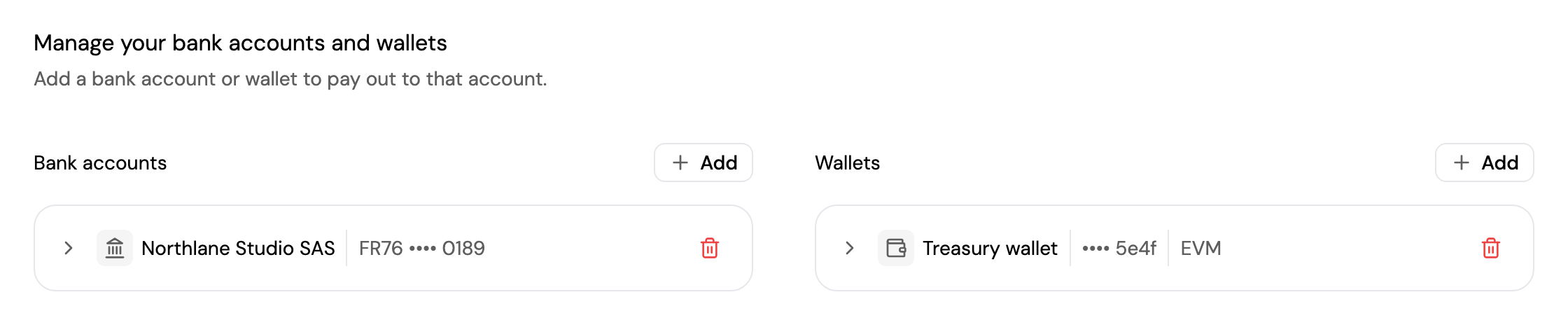
Your payout destinations are listed in two columns, Bank accounts and Wallets.
- Add a destination: click Add above the column and follow the steps. For a bank account, you choose the bank's country and the account type, then enter the bank details for that country. For a wallet, you enter its address; EVM (
0x…) and Solana addresses are accepted. - See its details: each account shows its name and the last digits of its number or address. Click it to see the full details, such as the IBAN, BIC or wallet address.
- Delete it: click the delete icon and confirm. If the account is used for an automatic payout, those automatic payouts are removed too.
If Inflow has restricted withdrawals to banks or wallets on your account, the corresponding Add button isn't shown.
Auto Payout
Auto payout sends your available balance to a bank account or wallet every day, automatically. It's set separately for USD and EUR.
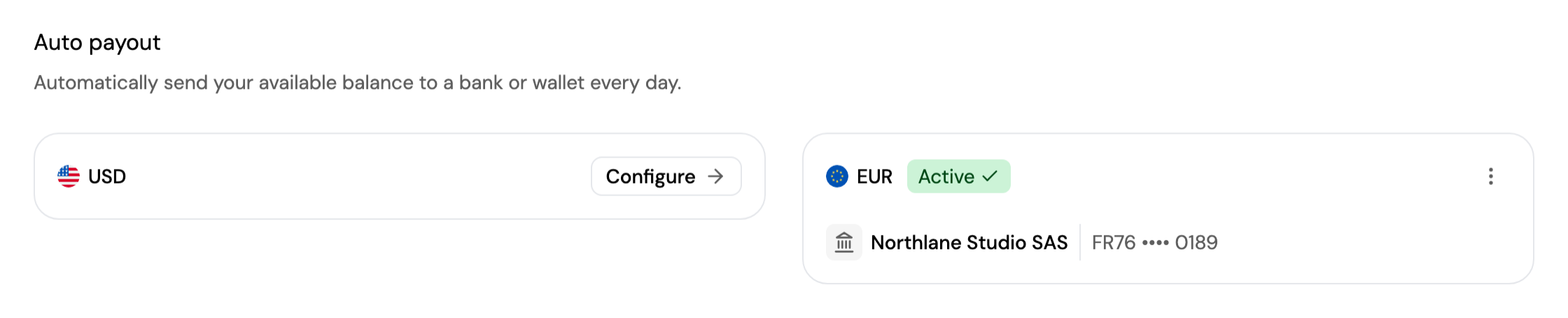
Each currency is in one of these states:
| State | What you see | What you can do |
|---|---|---|
| Not available | Not available and Contact support to enable | Auto payout isn't enabled for your account yet. Contact support to turn it on. |
| Not configured | The currency with a Configure button | Click Configure, choose the bank account or wallet to pay out to, and save. If you don't have one yet, you're asked to add one first. |
| Configured | The currency with Active or Paused, and its destination | Click ⋮ to Edit the destination, Pause or Resume daily payouts, or Remove the automatic payout. |
- The minimum payout is $1 (or €1).
- When you configure a currency, you can save the destination and start payouts later, by turning off Start auto-payout now.
- While payout approvals are required, automatic payouts don't run.
Destination Waiting Period

Set a waiting period, in hours, before payouts can be sent to a newly added bank account or wallet. It's set separately for Bank accounts and Wallets; 0 means no waiting period.
This stops someone who gets into your account from adding their own destination and withdrawing to it straight away. Enter the number of hours and click Save. Shortening a waiting period triggers the 48-hour security lock.
Payout Approvals

Require sign-off before withdrawals are sent. It prevents a single compromised account from draining your balance, and forces payouts through a review by trusted members.
- Choose the approvers. Only active members with the Owner or Admin role can approve.
- Set how many approvals each withdrawal Requires, between
0and the number of approvers.0turns approvals off. - Click Save.
How a withdrawal works with approvals
- A member requests a withdrawal from Balances.
- The withdrawal is created as Pending approval instead of being sent.
- Approvers are notified by email and in their dashboard notifications.
- Each approver opens the payout in Transactions → Payouts and clicks Approve, entering a code from their authenticator app. Approvers need two-factor authentication turned on to approve.
- When the last required approval is recorded, the withdrawal is sent automatically.
While approvals are required, automatic payouts don't run.
- The Owner is also an approver: their approval counts as one, like any other approver. They can't approve alone a withdrawal that requires two approvals or more.
- Approvals turned off (
0required approvals): withdrawals are sent directly, with no approval step.
The 48-hour security lock
When the payout settings are weakened, Inflow locks all payouts on your account for 48 hours. They're weakened when:
- the number of required approvals goes down;
- an approver is removed while approvals are required;
- approvers are added without raising the number of required approvals accordingly;
- either destination waiting period is shortened.
While the lock is active:
- All withdrawals are blocked, including those that already had enough approvals before the change.
- The lock is extended, not reset, if the settings are weakened again before it expires.
- It lifts automatically when the 48 hours are over. There's no way to unlock it early.
The lock gives the Owner time to notice an unexpected change and react: lock down the affected accounts, revoke API keys and remove compromised members.
Updated about 4 hours ago