
Payment Links
Available via: Dashboard only
A payment link is a checkout page you can share anywhere: by email, in a message, on your website or as a QR code. It charges one or more of your products, and every payment made with it appears in Transactions.
How to Access
- Open your Inflow Dashboard.
- Go to Product catalog → Payment links.
The page requires access to payment links. Creating, editing and managing links requires write access. See Roles and Permissions.
Your Payment Links
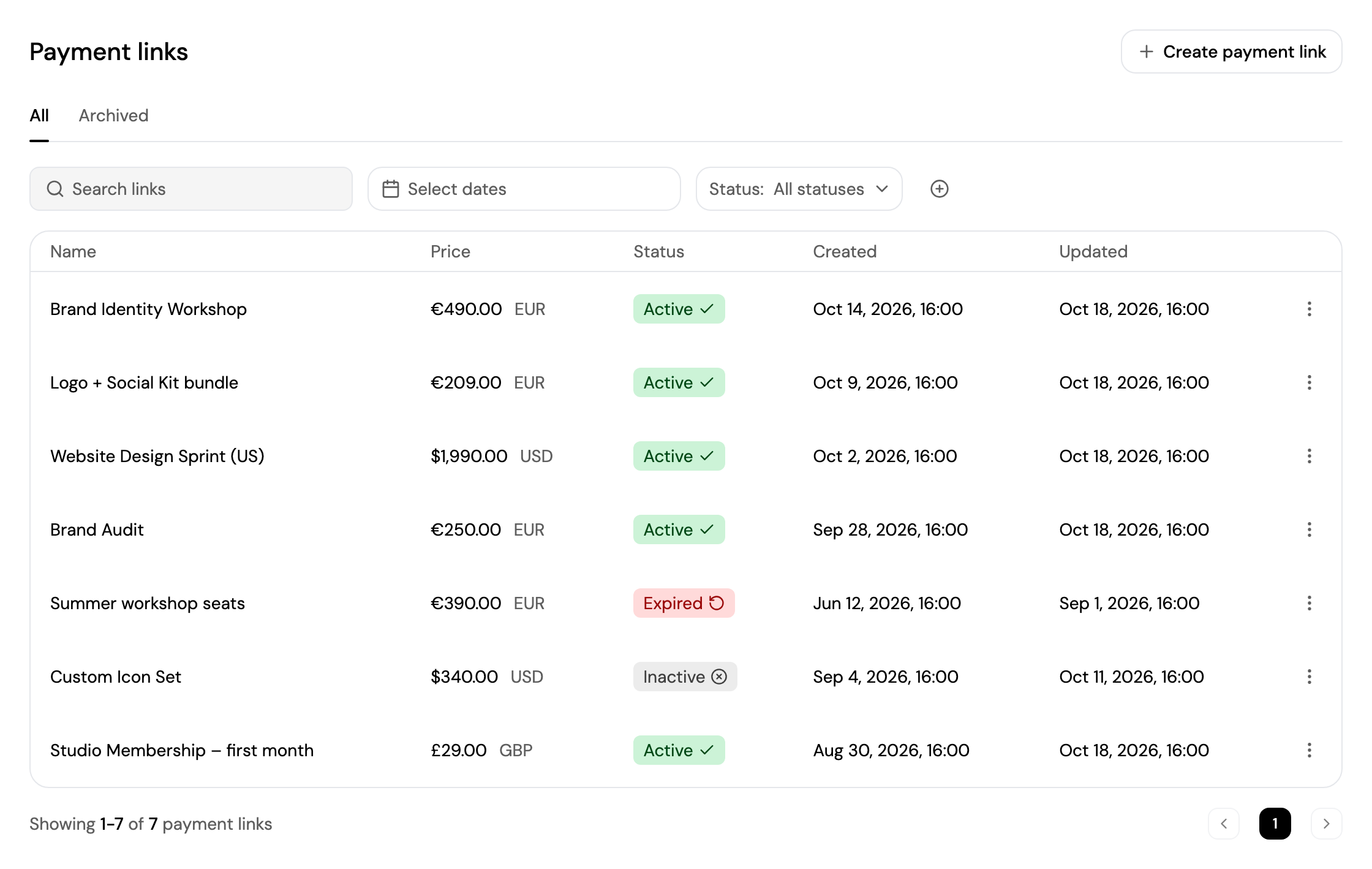
- All shows your links; Archived shows the ones you've archived.
- Search for a link, pick a date range with Select dates, filter by Status, and click + to filter by Currency.
- Each link shows its name, price, status, and when it was created and last updated.
- Click a link to open its page, or click ⋮ to archive, activate, deactivate or delete it.
| Status | Meaning |
|---|---|
| Active | Customers can pay with the link. |
| Inactive | The link is deactivated. Customers can't pay with it until you activate it. |
| Expired | The link's expiry date has passed. |
| Archived | The link is archived and disabled. |
Create a Payment Link
Click Create payment link and follow the steps. You can also start from + → Payment link in the top bar, or from Search.
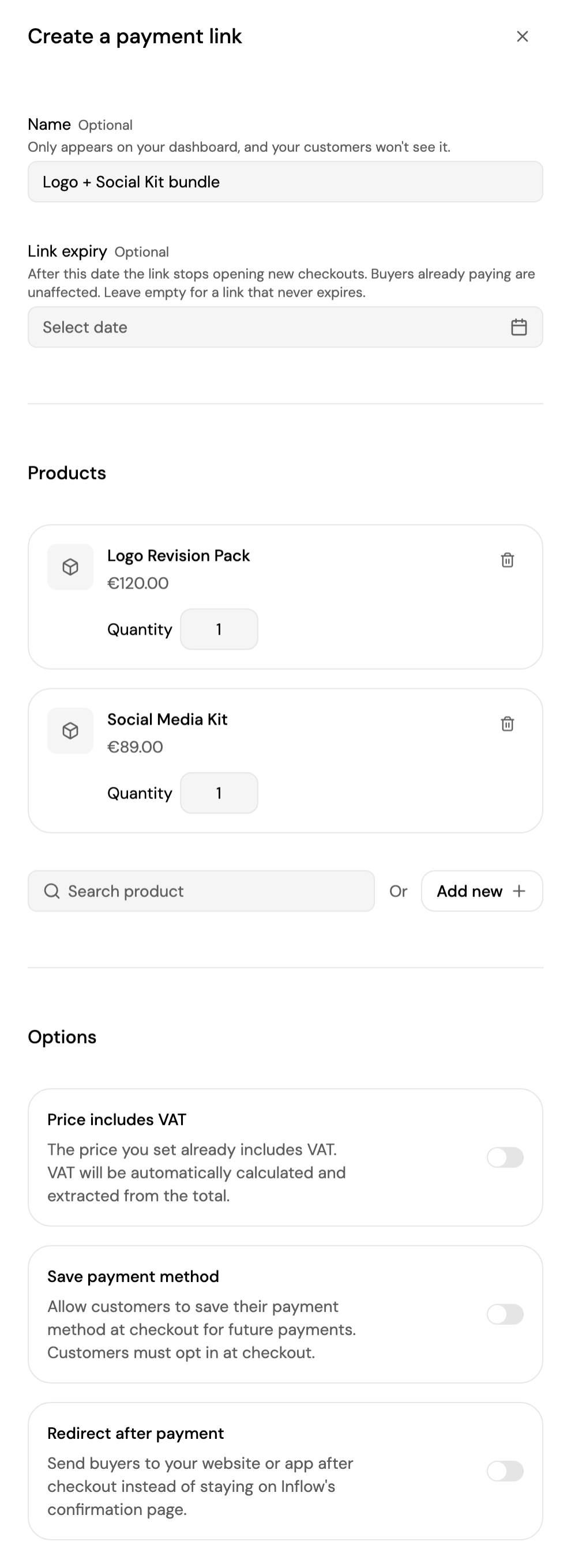
The page shows a live preview of the checkout next to the form, on desktop or mobile, which updates as you fill it in.
- Name (optional): only you see it. It defaults to the product name.
- Link expiry (optional): after this date, the link stops opening new checkouts. Leave it empty for a link that never expires.
- Products: search your catalog and click the price to add, or click Add new to create a product. The first product sets the link's currency, and the other products must have a price in that currency. Set the Quantity of each one. The total must be at least 0.50.
- Options:
- Price includes VAT: VAT is extracted from your prices instead of being added to them.
- Save payment method: customers can save their payment method at checkout for future payments.
- Redirect after payment: send customers to your website or app after they pay, instead of Inflow's confirmation page.
Click Create link. The link's page opens.
Payment Link Details
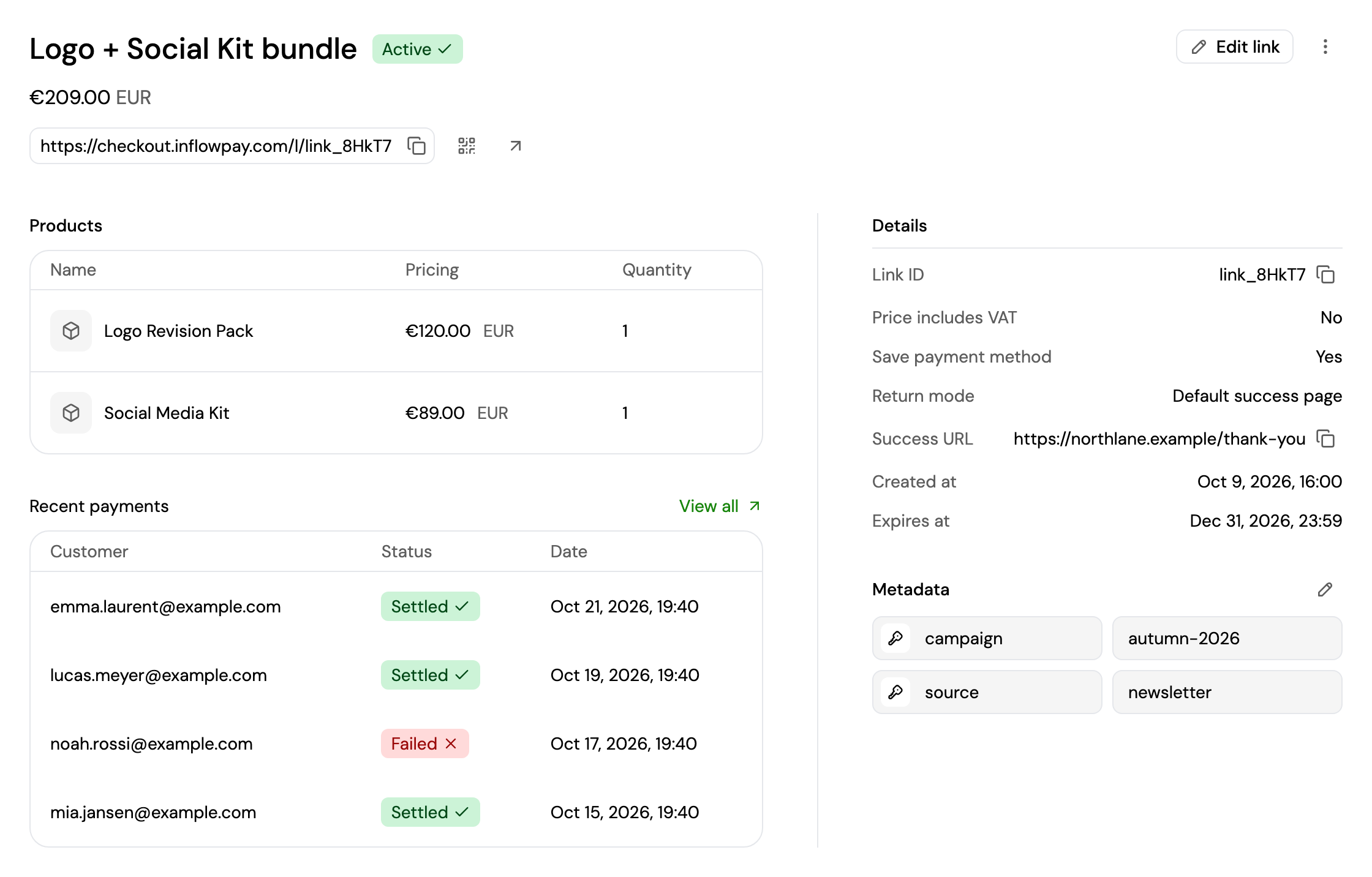
A link's page shows its name, status and price, and the link itself. Next to the link:
- Copy the link to share it.
- Show payment link QR code: copy or download a QR code that opens the link.
- Open payment link: open the checkout in a new tab.
Below:
- Products: the products and quantities the link charges.
- Recent payments: the latest payments made with the link. Click View all to see them all in Transactions → Payments.
- Details: the link ID, VAT and saved payment method settings, where customers go after paying, and the creation and expiry dates.
- Metadata: your own key and value pairs, for example a campaign name. Click Add metadata, or the pencil icon to edit. Up to 50 items.
From a link's page you can:
- Edit link: change its name, expiry date and options. The products, quantities and currency can't be changed; create a new link instead.
- Click ⋮ to:
- Deactivate link or Activate link: stop or resume payments with the link.
- Archive link or Unarchive link: archiving also disables the link. An unarchived link stays inactive until you activate it.
- Delete link: remove it from your dashboard. Customers can no longer pay with it, and it can't be undone.
See Using Payment Links for sharing links with your customers.
Updated about 4 hours ago