

Subscription Templates
Available via: Dashboard only
A subscription template is a recurring plan: a price, a billing period and options such as a free trial. Each template has its own checkout link; every customer who subscribes through it gets a subscription, which you then manage in Subscriptions.
How to Access
- Open your Inflow Dashboard.
- Go to Product catalog → Subscription templates.
The page requires access to subscription templates. Creating, editing, archiving and deleting templates requires write access, and approving waitlist entries requires write access to subscriptions. See Roles and Permissions.
Your Templates
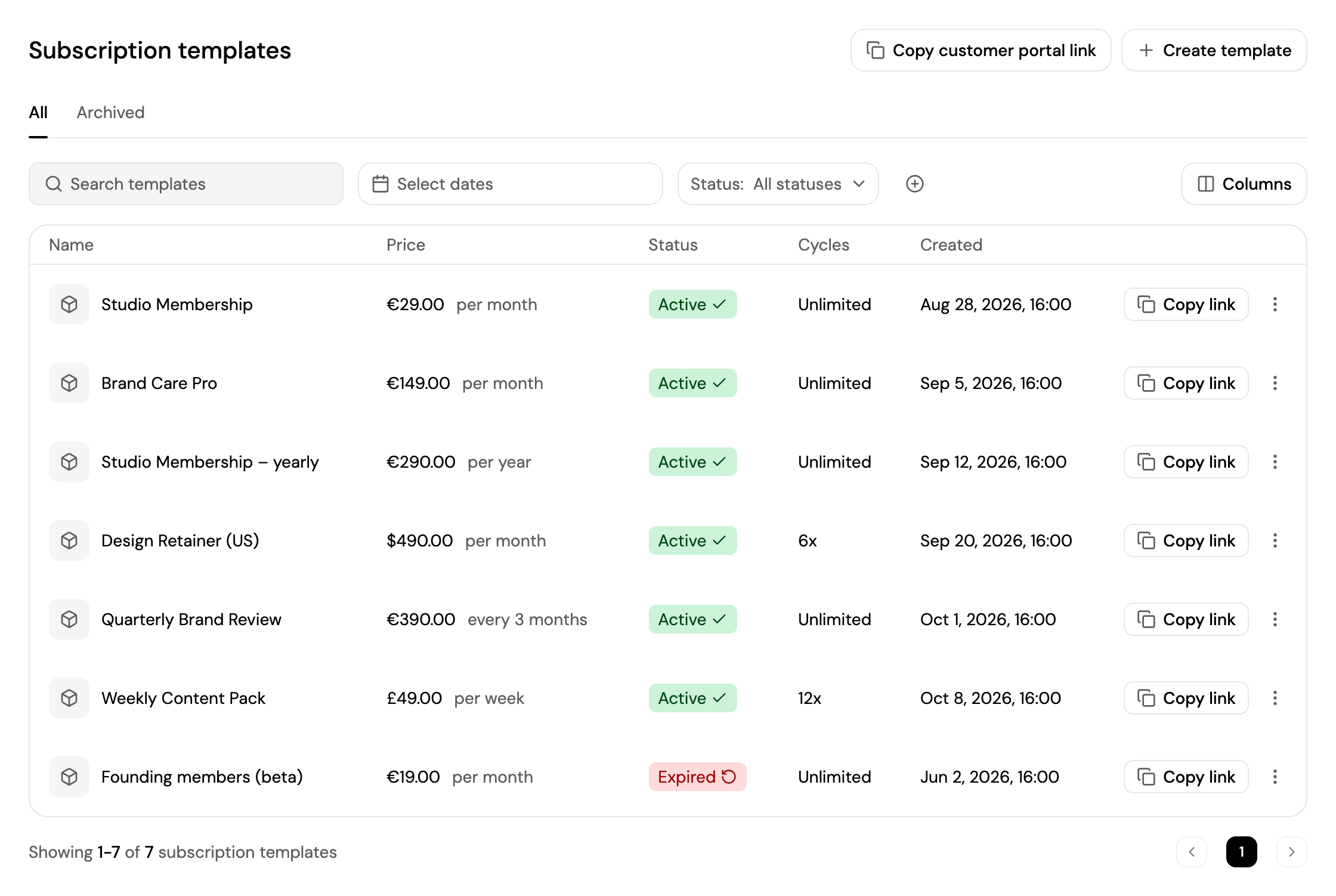
- All shows your templates; Archived shows the ones you've archived.
- Search for a template, pick a date range with Select dates, filter by Status (Active or Expired), and click + to filter by Currency or Interval.
- Click Columns to choose which columns are shown, including Entry fee and Waitlist.
- Each template shows its price and billing period, status, number of cycles and creation date.
- Click Copy link to copy a template's checkout link, click a template to open its page, or click ⋮ to archive or delete it.
Copy customer portal link copies the link to your customer portal, where your customers manage their own subscriptions. Share it with them, for example in your emails.
Create a Template
Click Create template and follow the steps. You can also start from + → Subscription template in the top bar, or from Search.
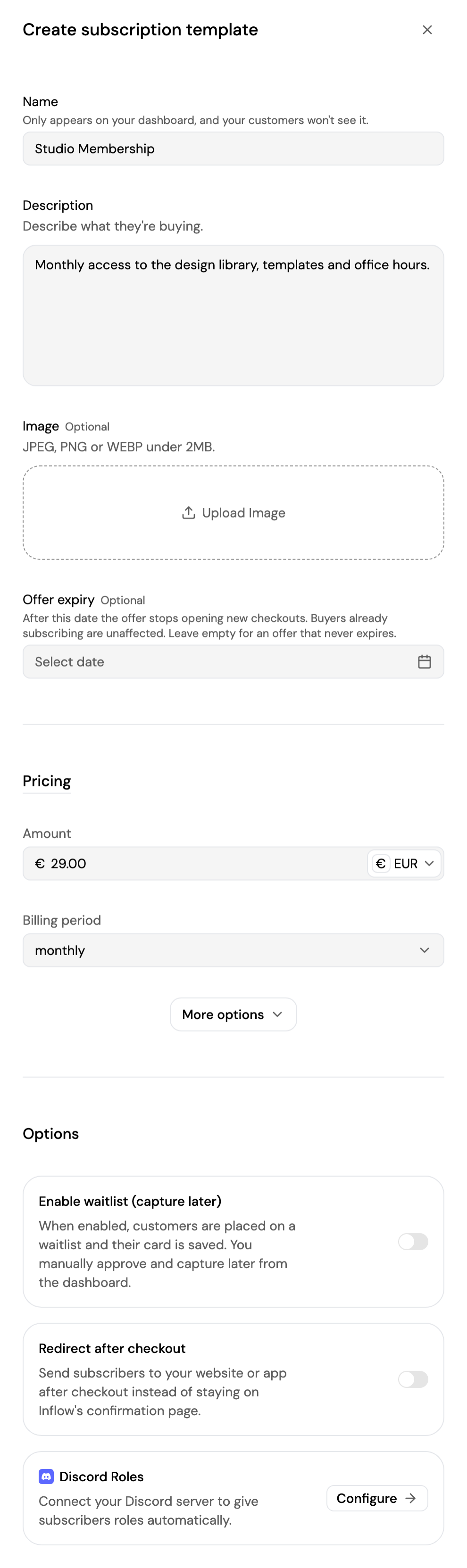
The page shows a live preview of the checkout next to the form, on desktop or mobile, which updates as you fill it in.
- Name: only you see it.
- Description: what customers are subscribing to, shown at checkout.
- Image (optional): JPEG, PNG or WEBP under 2 MB.
- Offer expiry (optional): after this date, the template stops opening new checkouts. Existing subscribers aren't affected.
- Pricing: the Amount and currency (USD, EUR or GBP, at least 0.50), and the Billing period: Weekly, Monthly, Annually, or Custom to charge every few weeks, months or years.
- More options (optional):
- Price includes VAT: VAT is extracted from your price instead of being added to it.
- Entry fees: a different amount for the first payment. See Entry Fees.
- Free trial: 1 to 365 days before the first charge. See Trial Periods. A template can have entry fees or a free trial, not both.
- Number of cycles: how many times the customer is charged, at least 2. Leave it empty for no limit.
- Smart retry: use your account's setting from Billing, set a custom retry ladder for this template, or turn it off. See Smart Retry.
- Options:
- Enable waitlist (capture later): customers join a waitlist and their card is saved; you approve them later from the dashboard. See Waitlist.
- Redirect after checkout: send subscribers to your website or app after they subscribe.
- Discord Roles: give subscribers a role on your Discord server automatically. Click Configure to connect your server first. See Discord. A template can use Redirect after checkout or Discord Roles, not both.
Click Create template. The template's page opens.
Template Details
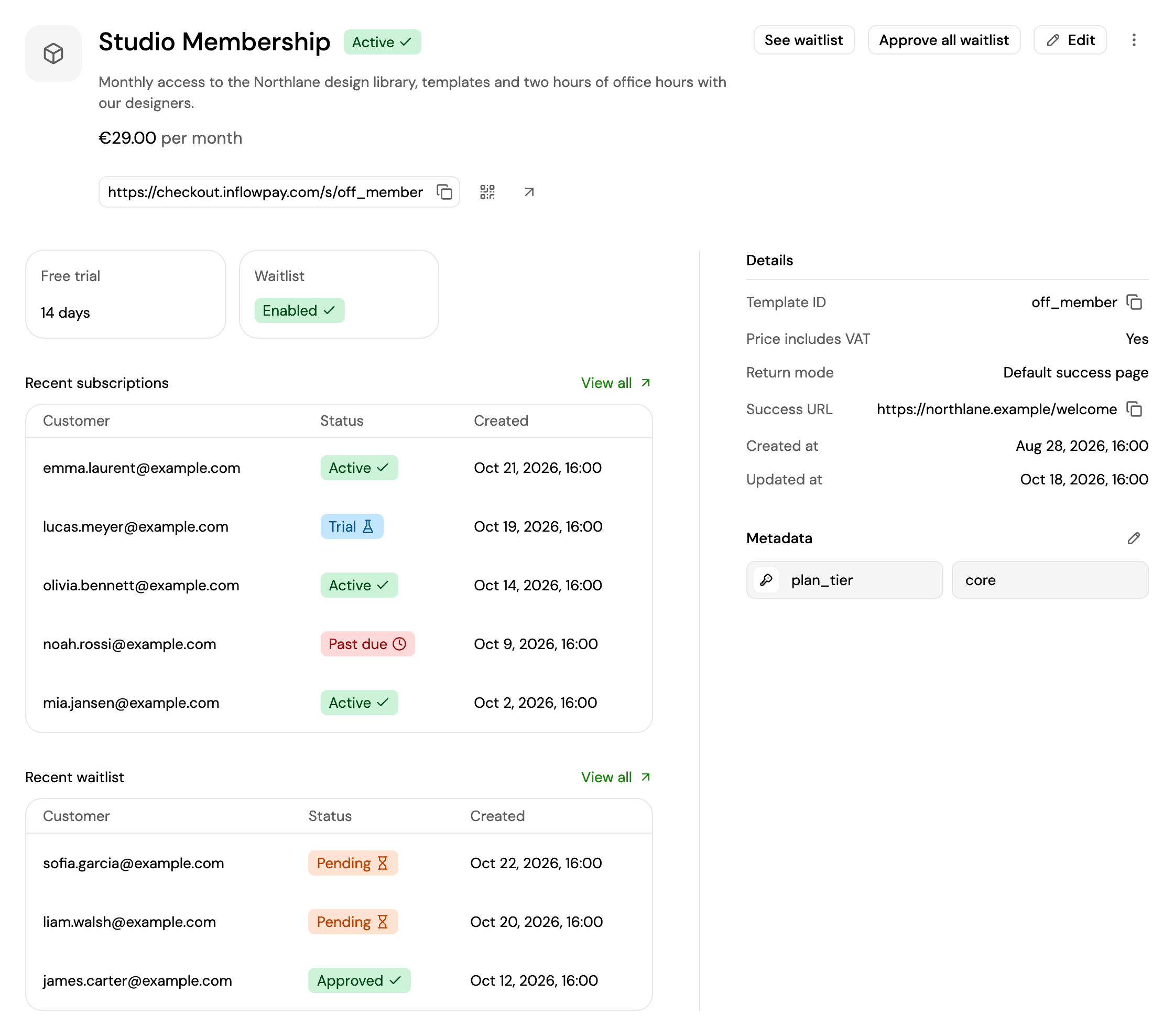
A template's page shows its name, status, description and price, and its checkout link with Copy, a QR code to copy or download, and Open. Below:
- Entry fees, Free trial and Waitlist, when the template uses them.
- Discord access: the server and role subscribers receive, if set.
- Recent subscriptions: the latest subscriptions created from the template. Click View all to see them all in Subscriptions.
- Recent waitlist: the latest waitlist entries, if the waitlist is on.
- Details: the template ID, VAT setting, where subscribers go after checkout, and the creation, update and expiry dates.
- Metadata: your own key and value pairs. Click Add metadata, or the pencil icon to edit.
From a template's page you can:
- Edit: change its name, expiry date, VAT setting, free trial, smart retry, waitlist, redirect and Discord role. The description, image, amount, currency, billing period, entry fees and number of cycles can't be changed after creation.
- See waitlist: open the template's waitlist. See below.
- Approve all waitlist: approve every pending entry at once. Their saved cards are charged and their subscriptions start.
- Click ⋮ to:
- Archive template or Unarchive template: archiving disables the template and its checkout link.
- Delete template: remove it from your dashboard. Customers can no longer subscribe with it, and it can't be undone.
Waitlist
When a template has Enable waitlist (capture later) turned on, customers who subscribe join its waitlist: their card is saved, but they aren't charged and their subscription doesn't start until you approve them. Click See waitlist on the template's page to open it.
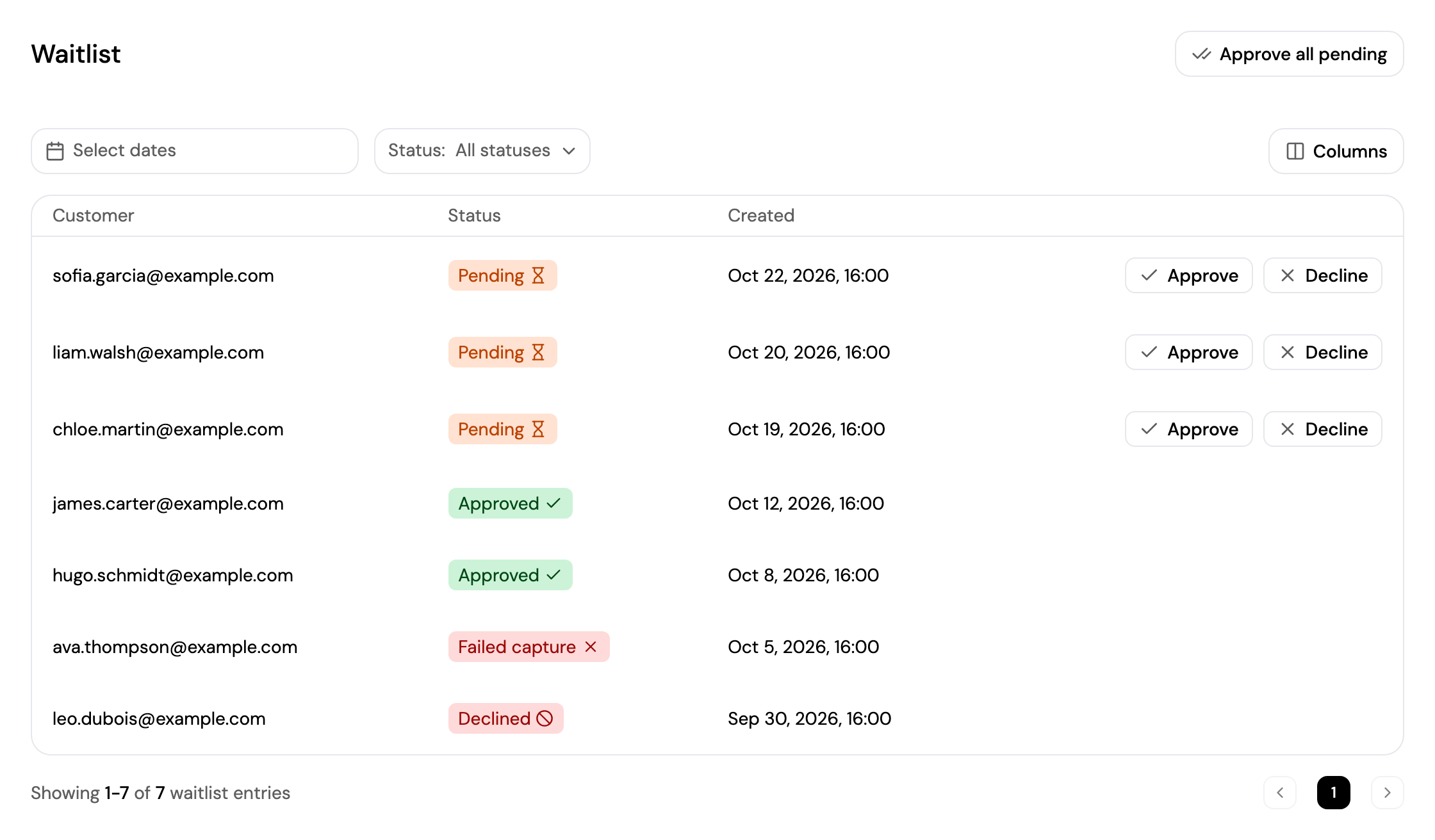
Each entry shows the customer, its status and when they joined.
| Status | Meaning |
|---|---|
| Pending | The customer is waiting for your decision. |
| Approved | You approved the customer; their card is charged and their subscription starts. |
| Failed capture | You approved the customer, but the charge failed. They receive an email to update their payment method. |
| Declined | You declined the customer. Their subscription is cancelled and they aren't charged. |
- Approve or Decline a pending entry with the buttons on its row.
- Approve all pending approves every pending entry at once.
- Pick a date range with Select dates, and filter by Status.
- Click Columns to show the customer's Discord username and ID, or the Extra infos they entered at checkout.
Approving and declining requires write access to subscriptions. See Waitlist for what customers receive and when they're charged.
Updated about 2 hours ago